Getting Started with Veeton
Creating your Veeton account
Creating your Veeton account is quick and straightforward. Follow these steps to sign up and start generating your first AI fashion photoshoot:
Go to the sign-in page
Follow these steps:
You’ll see the login screen with the Veeton logo, an email field, and the option to continue with Google.

Sign up with Google
Here’s what to do:
Click Continue with Google.
Choose your Google account and grant access.
Sign up with your email address
To sign-up with your email, you have to:
Enter your email address in the field provided.
Click Continue.
Check your inbox for a verification email. Open it and follow the confirmation link.
Once verified, you’ll be redirected to your Veeton's dashboard.
Complete your profile
After logging in for the first time, you may be prompted to complete your profile:
Add your name and your brand or company name
If you wish, you can enter your company's website and phone number
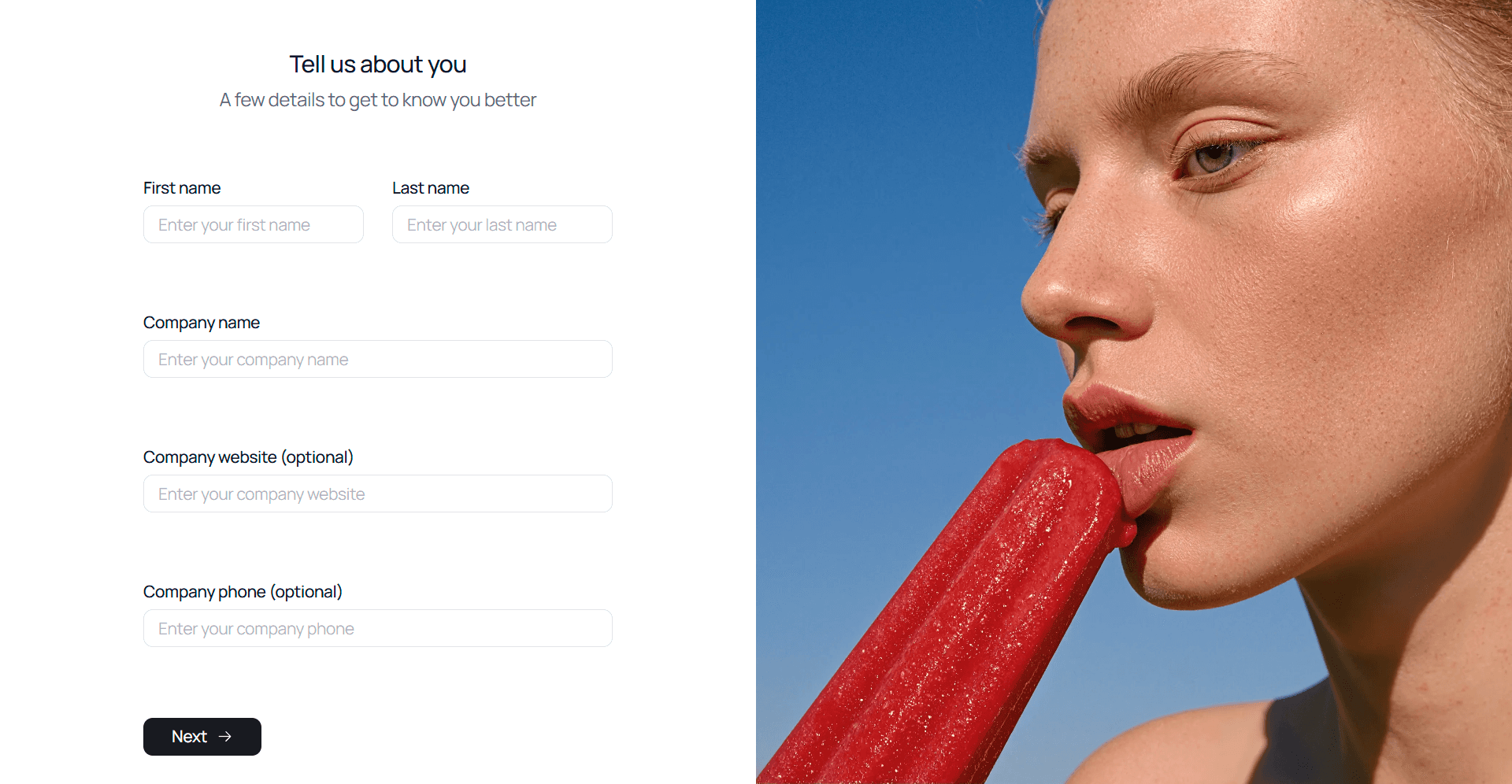
Complete your information
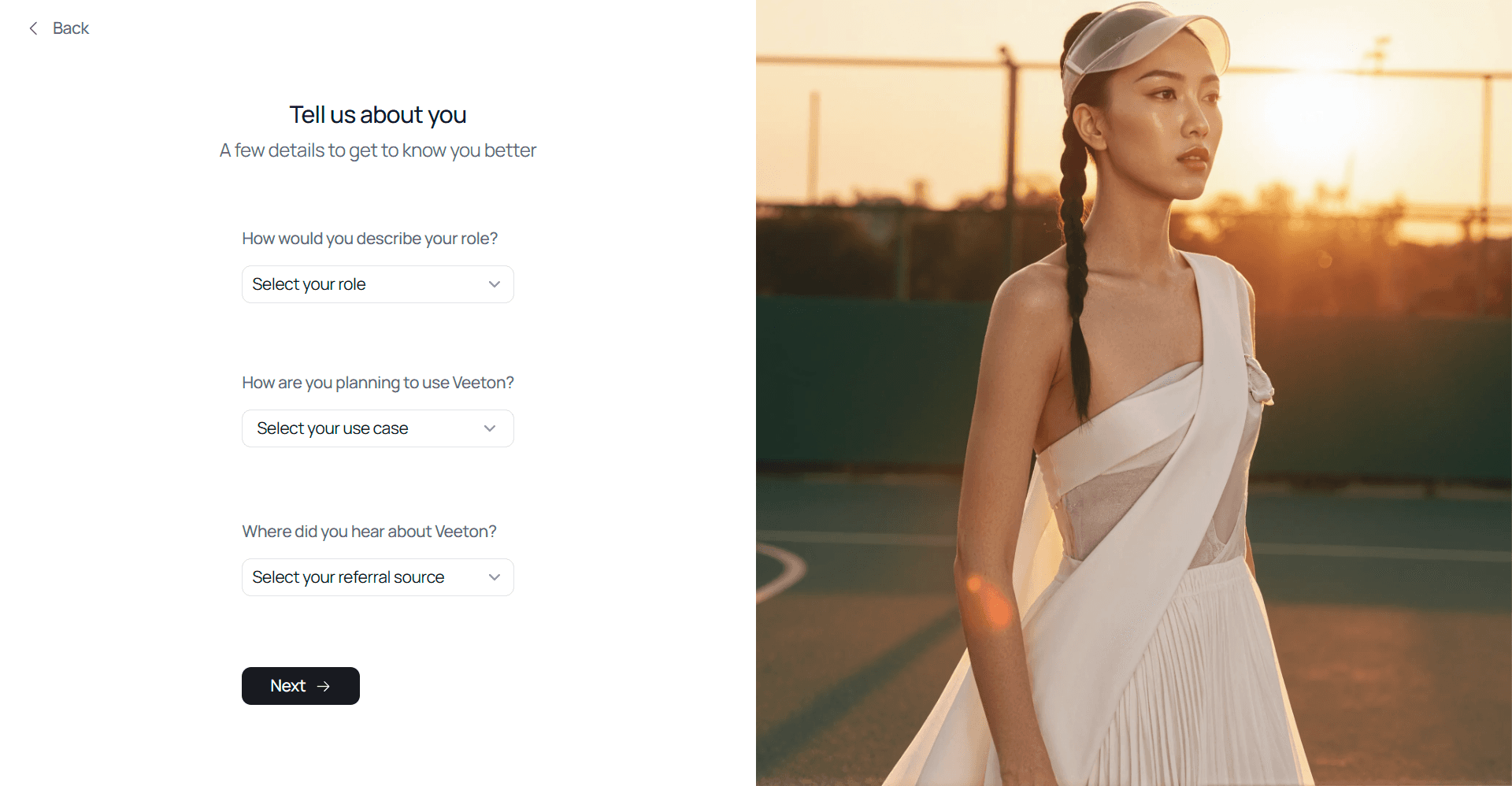
You have 14 days to use the platform freely, after which you can choose the package that best suits your needs.
Navigating the Veeton dashboard
Once your account is created and verified, you’ll land on the Veeton Dashboard. This is your control center for managing AI fashion photoshoots and products.
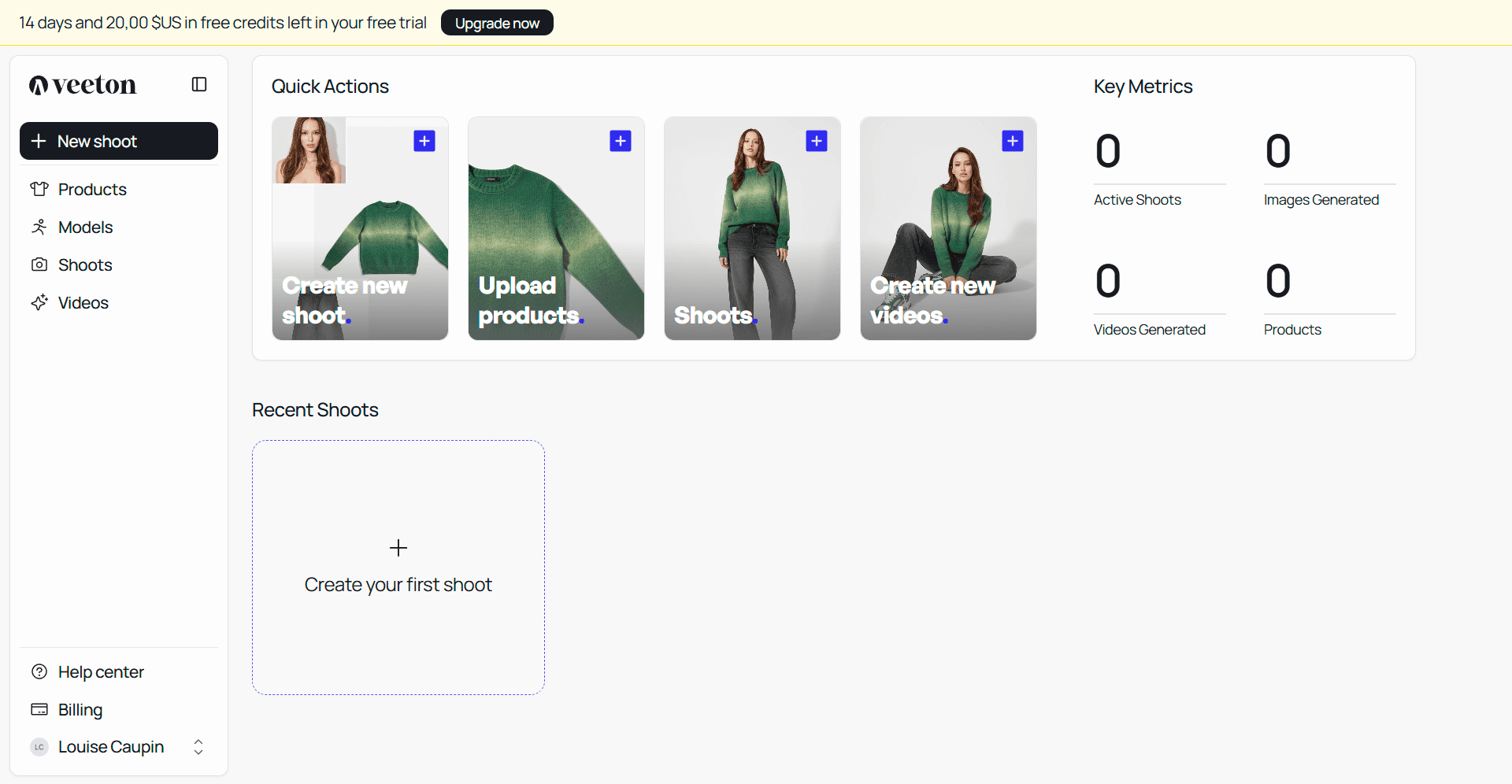
Here’s a quick guide to help you find everything you need:
Quick actions (top section)
Here is the quick actions:
Create New Shoot: Start a new AI photoshoot instantly.
Upload Products: Add your SKU packshots (flatlays, ghost mannequins, hanger shots, or in-house raw product photos).
View Shoots: Access all your current and past shoots.
Image to Video: Convert generated images into short videos for your product pages or marketing.
Key metrics (center of the dashboard)
This area gives you an at-a-glance view of your activity:
Active Shoots: The number of ongoing projects.
Images Generated: Total AI-generated fashion photos.
Videos Generated: Total AI-generated short videos.
Products: The number of SKUs you’ve uploaded.
These metrics help you quickly track your progress and remaining workload.
Recent shoots (lower section)
This panel lists your most recent projects for quick access.
Left sidebar navigation
New Shoot: Shortcut to start a new photoshoot.
Products: View, upload, or manage your SKUs.
Models: generate your own personalized model.
Shoots: Access and organize your AI photoshoots.
Video: Generate and manage AI fashion videos.*
Billing: Check your credits, subscription plan, and payment details.
Settings: Update your profile, brand name, or preferences.
User menu (top right)
Click the user icon to log out, change profile or manage team.