How to generate videos?
How to generate video from shoot?
In addition to photorealistic images, Veeton allows you to create short AI fashion videos from your completed shoots. These 5-second videos are perfect for boosting engagement on e-commerce pages or social media.
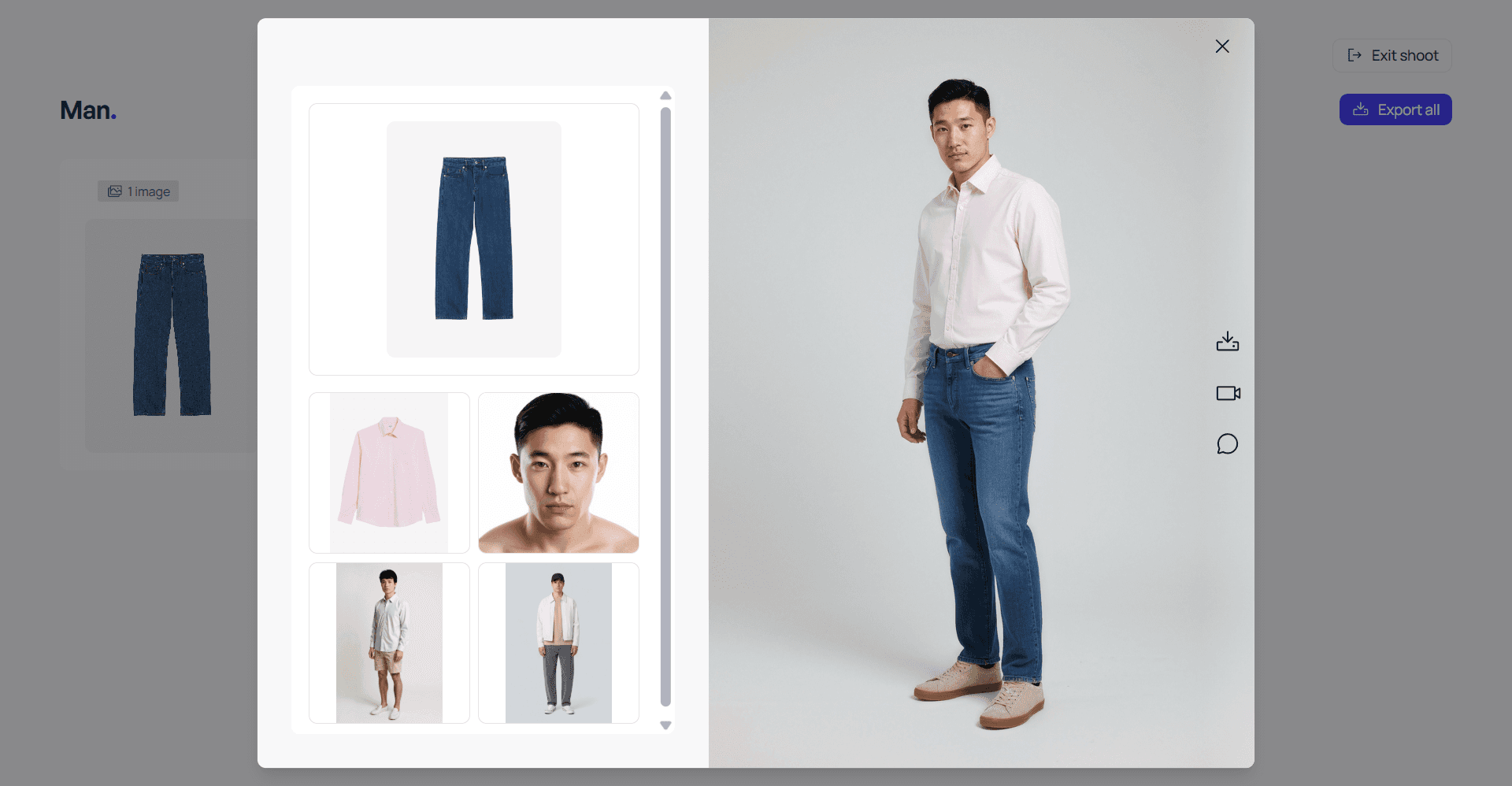
Open a completed Shoot
Go to your Shoots tab or the Recent Shoots section on your dashboard.
Select the shoot containing the images you want to animate, then click on the Camera icon.
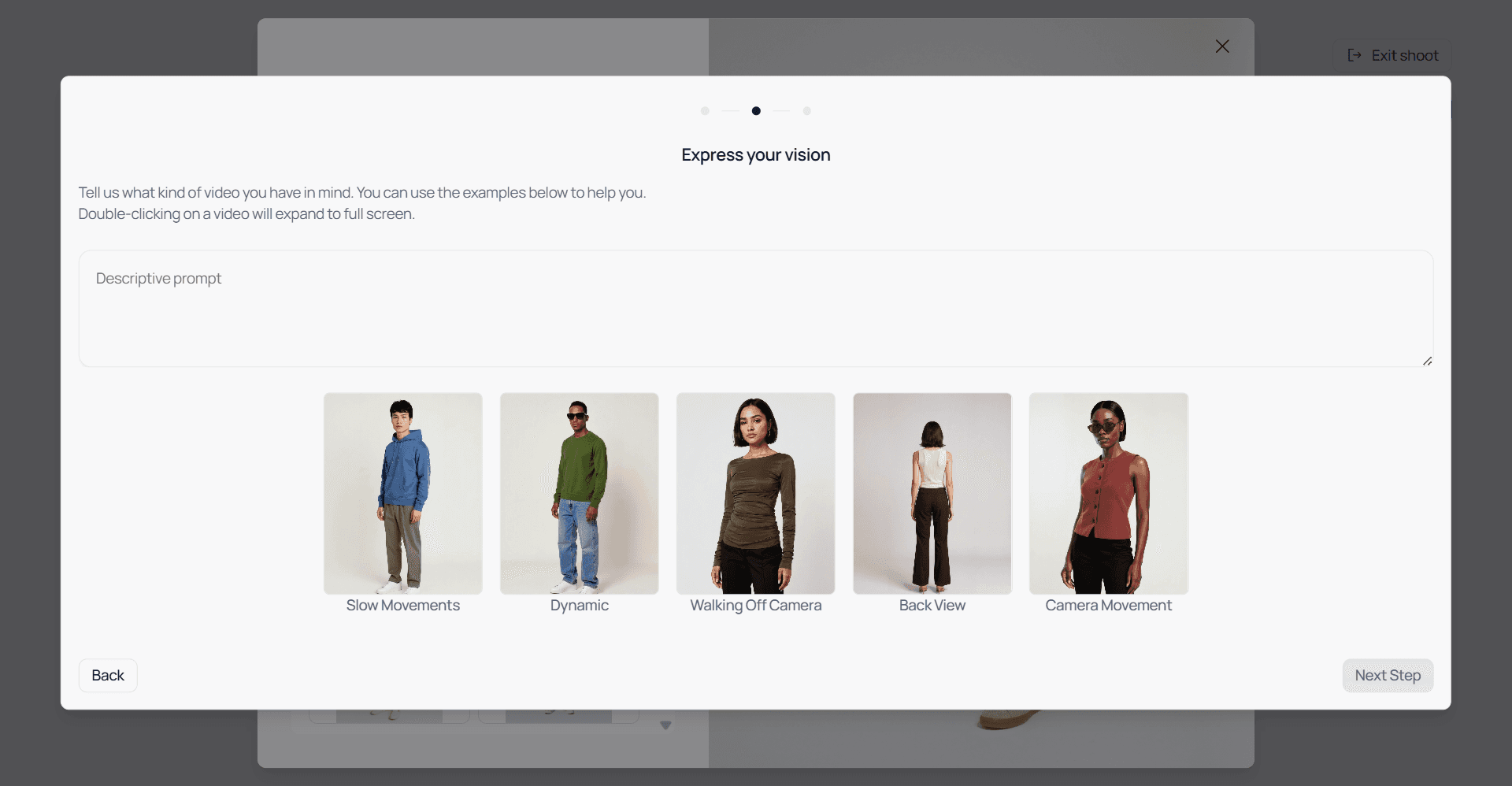
Choose a movement style or prompt
You’ll see five ready-made movement cards prepared by Veeton:
- Slow Movements
- Dynamic
- Walking Off Camera
- Back View
- Camera MovementSelect one of these pre-set movements to quickly define your video style.
Alternatively, enter your own descriptive prompt in the text box if you want a custom motion or creative direction.
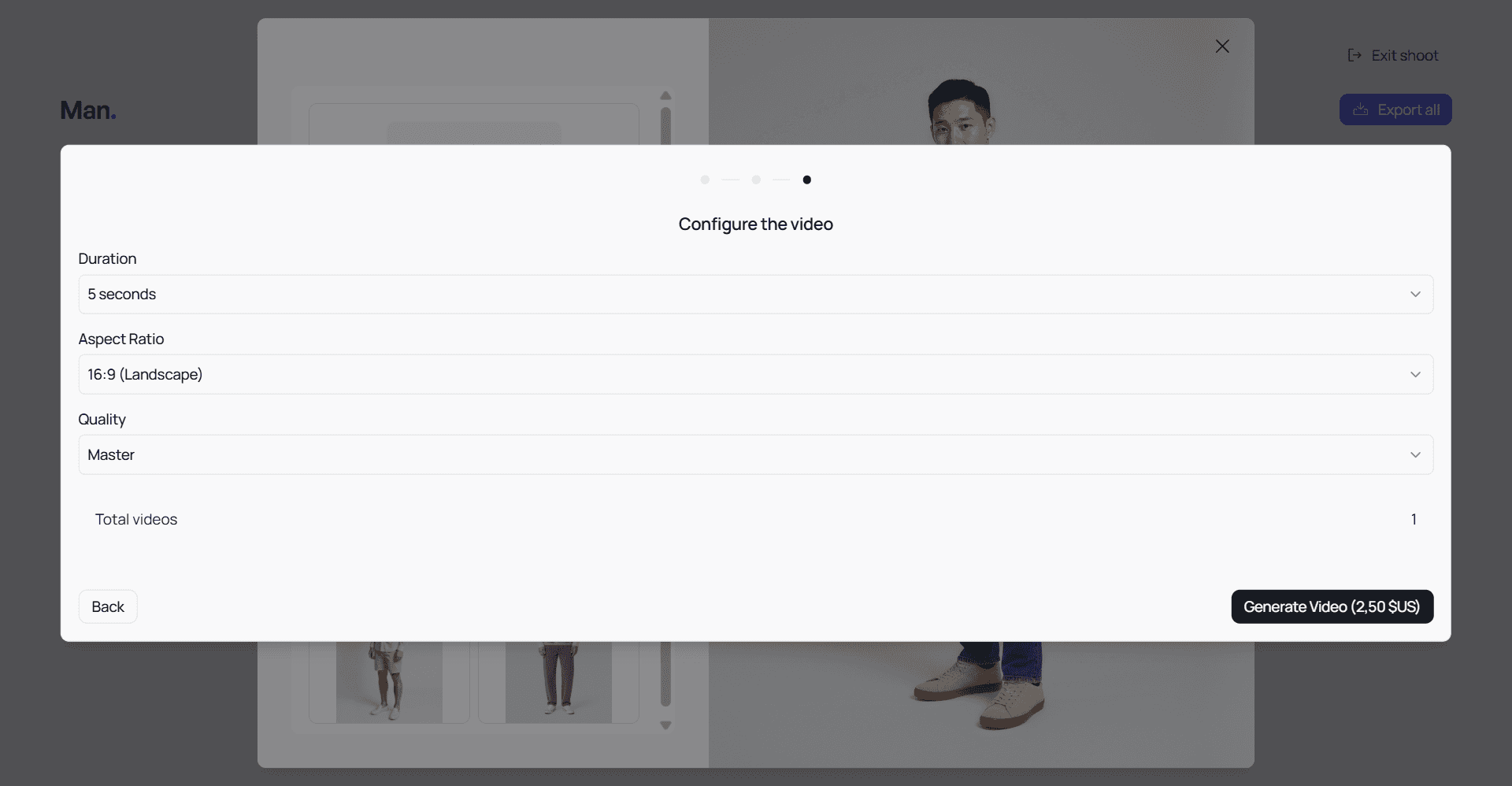
Configure your video settings
On the Configure screen (see image above), adjust the following:
- Duration → Default is 5 seconds.
- Aspect Ratio → Choose between 16:9 (Landscape), 9:16 (Portrait), or 1:1 (Square)
- Quality → Select Pro (2 credits) or Master (4 credits) for the desired rendering quality.The panel will also display Total Videos and Credits required before generation.
Generate the video
Click Generate Video to launch the process.
Veeton will render your video in just a few minutes, even for multiple animations.
Download and use
Once ready, your videos will be available in your shoot gallery for download.
Use them on e-commerce product pages, social media platforms, or marketing campaigns to boost engagement.