Create my first AI photoshoot - Single product
How do I start a new shoot in Veeton
To generate new AI fashion photos, you need to launch a new shoot:
From the dashboard homepage, click Create New Shoot in the Quick Actions section.
Choose a name for this new shoot.
How to select the clothing items (SKUs) you want to generate
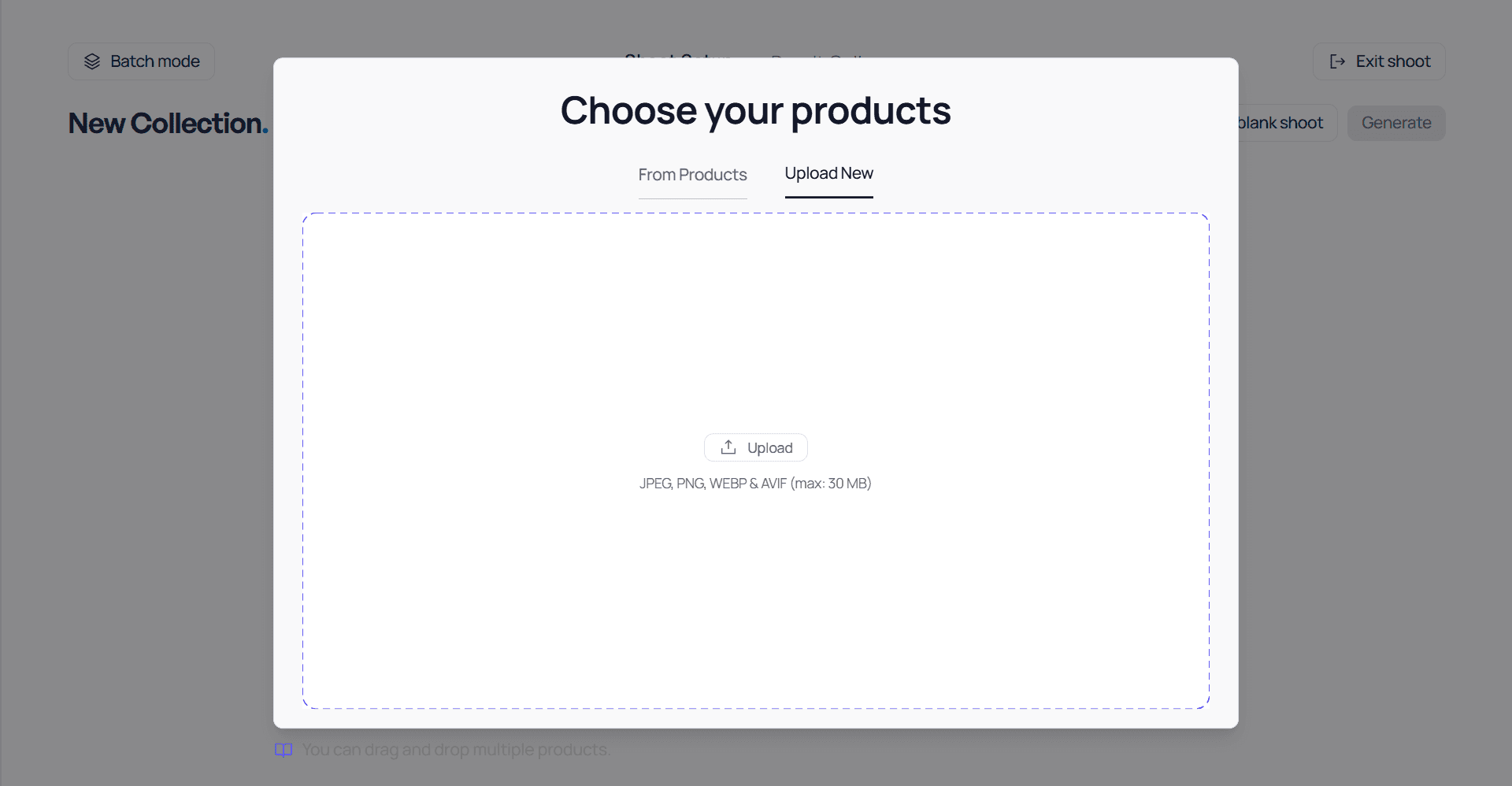
After entering the name of your collection, you will be redirected to a pop-up window in the center of the screen, where you can upload or select the product you want to include in the collection.
All products that you have already downloaded to the platform can be found in the “From Products” window, if all the products you need have already been downloaded:
Stay on the window "From products" to choose one or several SKUs from your uploaded products.
Or click on Upload New to select one or several products on your device.
How to generate your first shoot, for one product
On "From products" window or "Upload New" window, select the product for which you want to create a look.
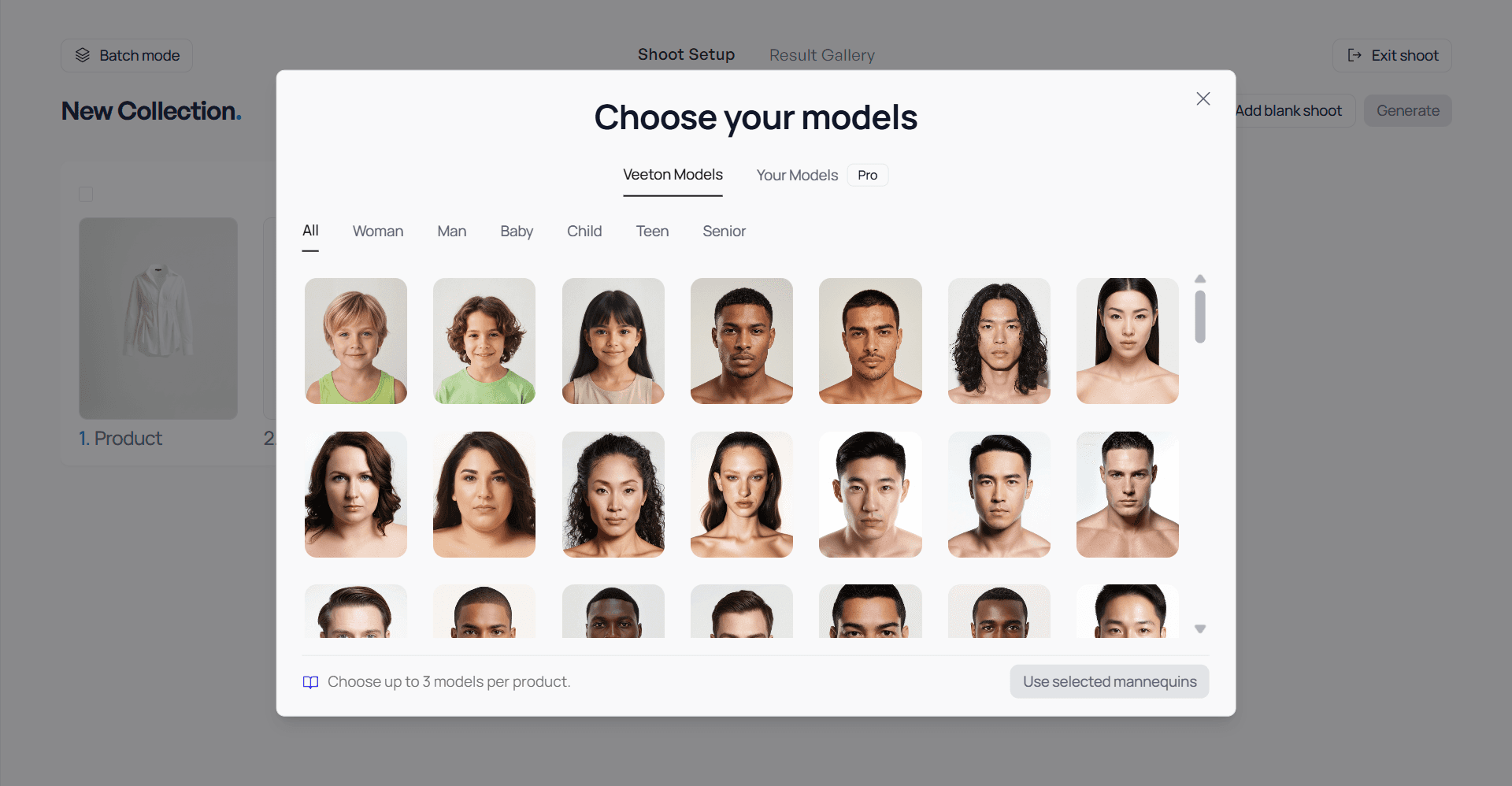
Choose a model
Once you’ve selected your main SKU, you can now choose the model who will wear the outfit (Woman, Man, Baby, Child, or Senior).
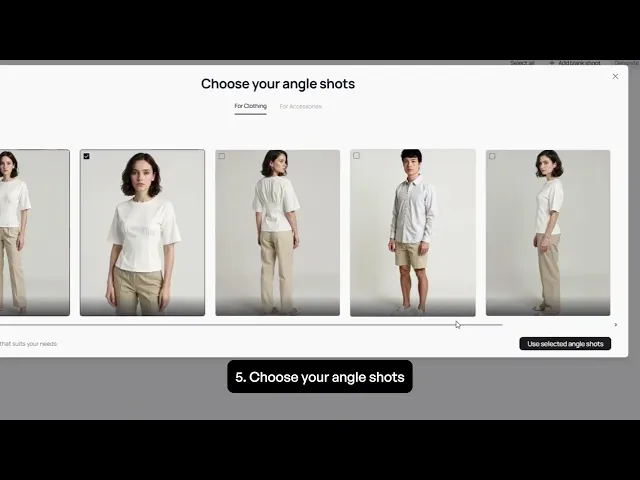
Shooting angle and pose
Selecting the right shooting angle and pose is essential to showcase your product effectively in Veeton’s AI-generated fashion photos. This step defines how your garment will appear on the virtual model.
Click on the shooting angle and pose you want — or click on baby to choose a pose of a baby.
Complete the shoot or launch generation
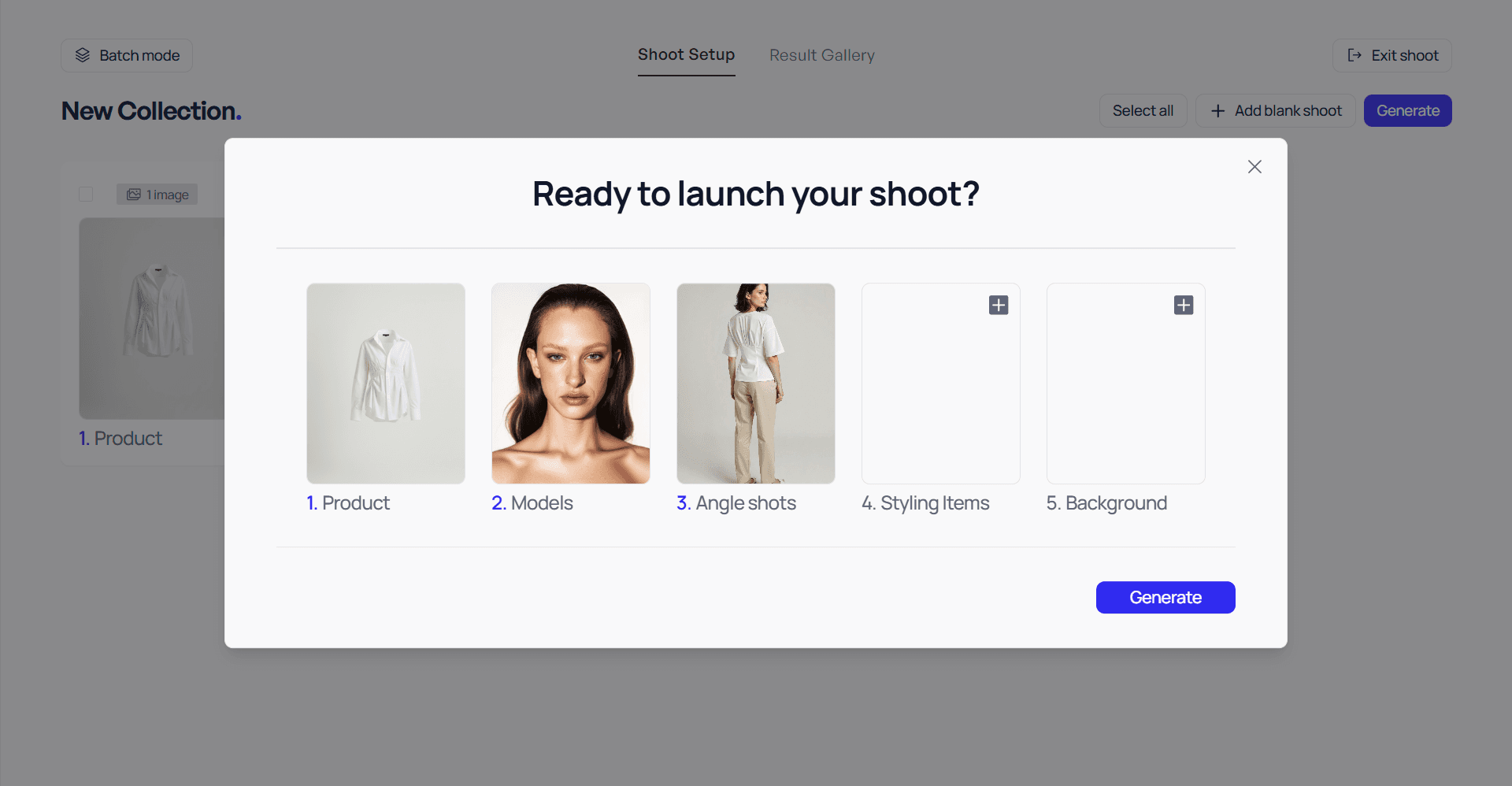
If you want to add a product to style the look (pants, accessory, jacket etc.) and/or a color background, you just have to click on the relevant sections.
Create a style
You can now match combine an other garment to create a complete outfit or a stylish look:
Choose products you've already uploaded to your gallery or upload a new product —or let AI do it for you if the outfit needs to be completed.
This feature is ideal for cross-selling or presenting your collections as styled ensembles for e-commerce product pages and lookbooks.
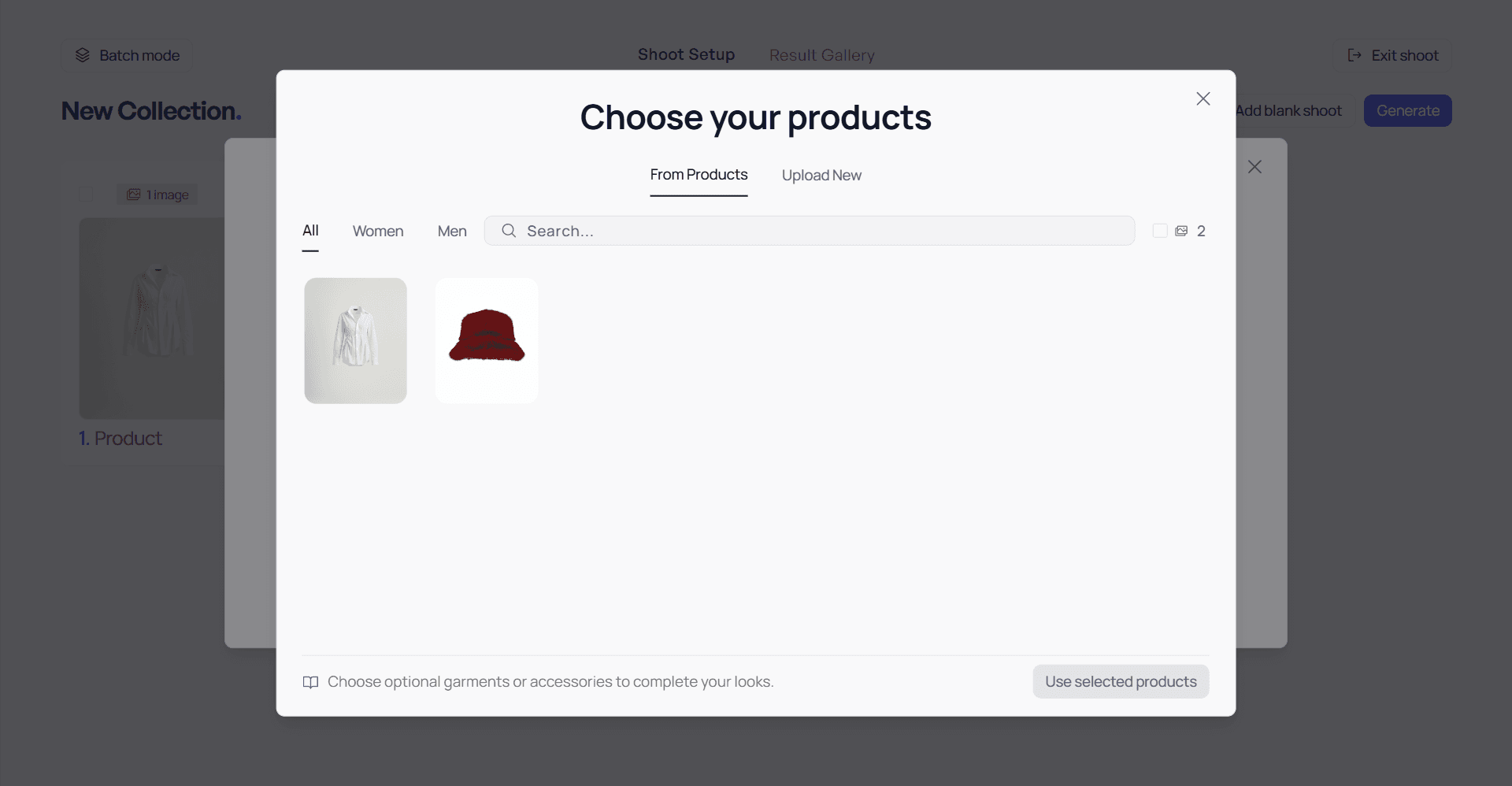
Choose a background
Then select a background (Monochrome, Pastel, Vivid) — or let AI do it for you.
Launch generation
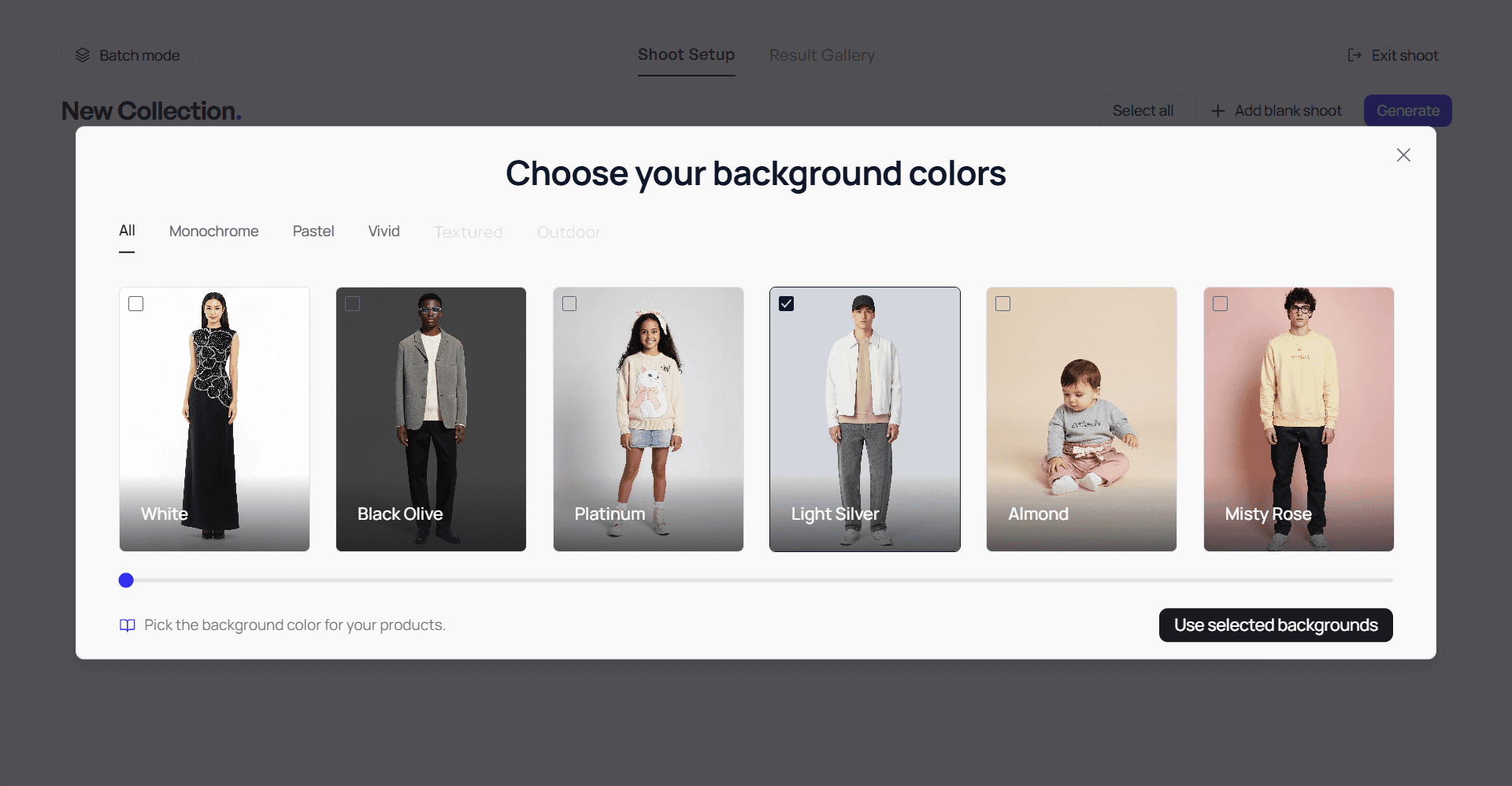
Once you’ve selected your SKUs, matched items (if any), assigned a virtual model, and chosen your shooting angles and poses, you’re ready for the final step: launching the AI generation.
Click on generate, you can now launch the generation!
How to create a shoot — Tutorial video
📹 Tutorial video:
Generating the on-Model photo
Once you’ve selected your SKUs, matched items (if any), assigned a virtual model, and chosen your shooting angles and poses, you’re ready for the final step: launching the AI generation.
Review your selections
Double-check that each garment or look has the correct model, angles, and poses assigned.
Make sure all SKUs you want to generate are included in the shoot list.
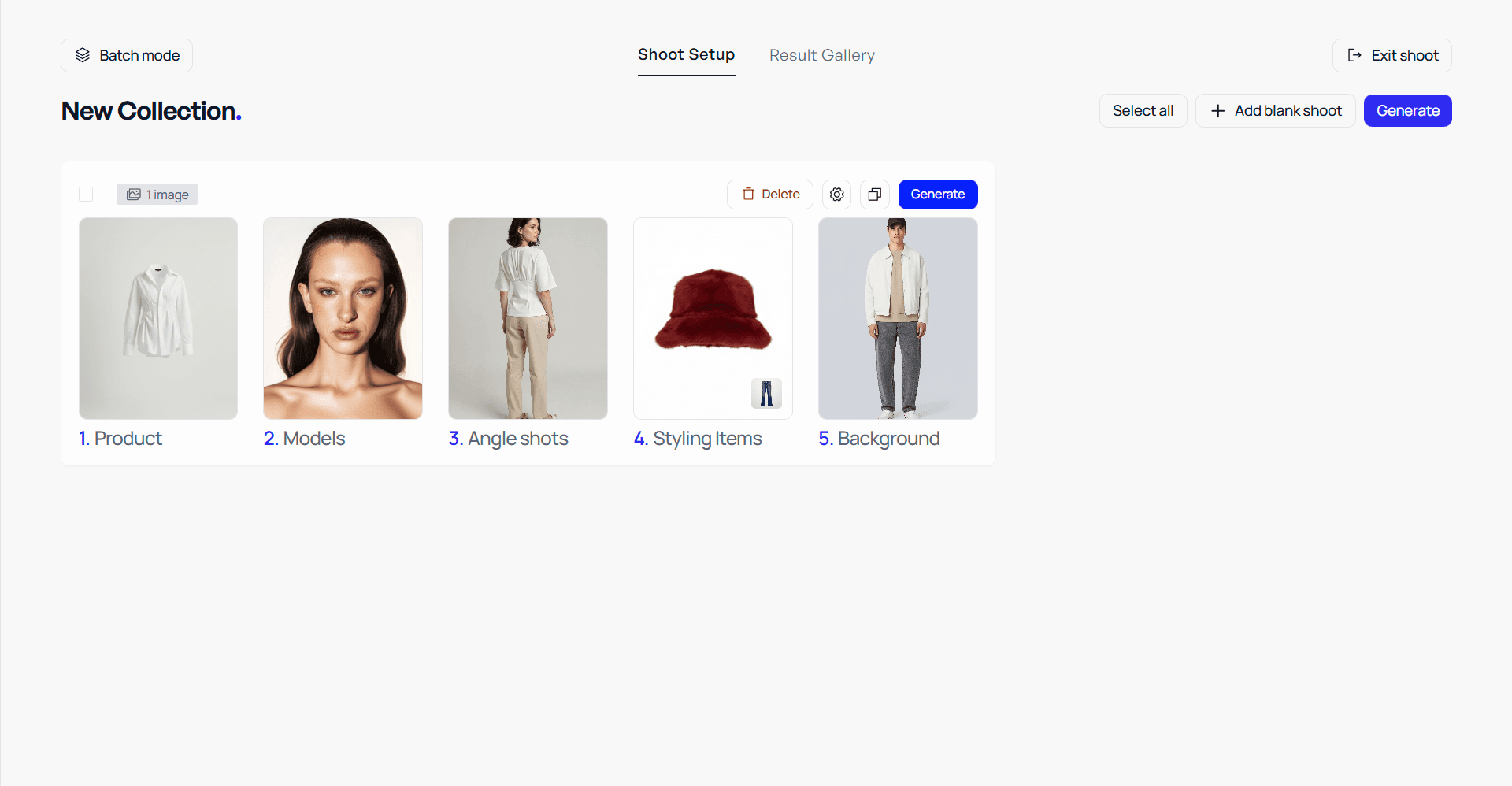
Launch the generation
Click the Launch Generation button at the bottom right of the screen to start the AI rendering process.
Veeton will process your packshots and generate photorealistic on-model fashion photos based on your chosen settings.
Processing time
The generation takes only a few minutes, even for multiple SKUs or angles.
Preview the results
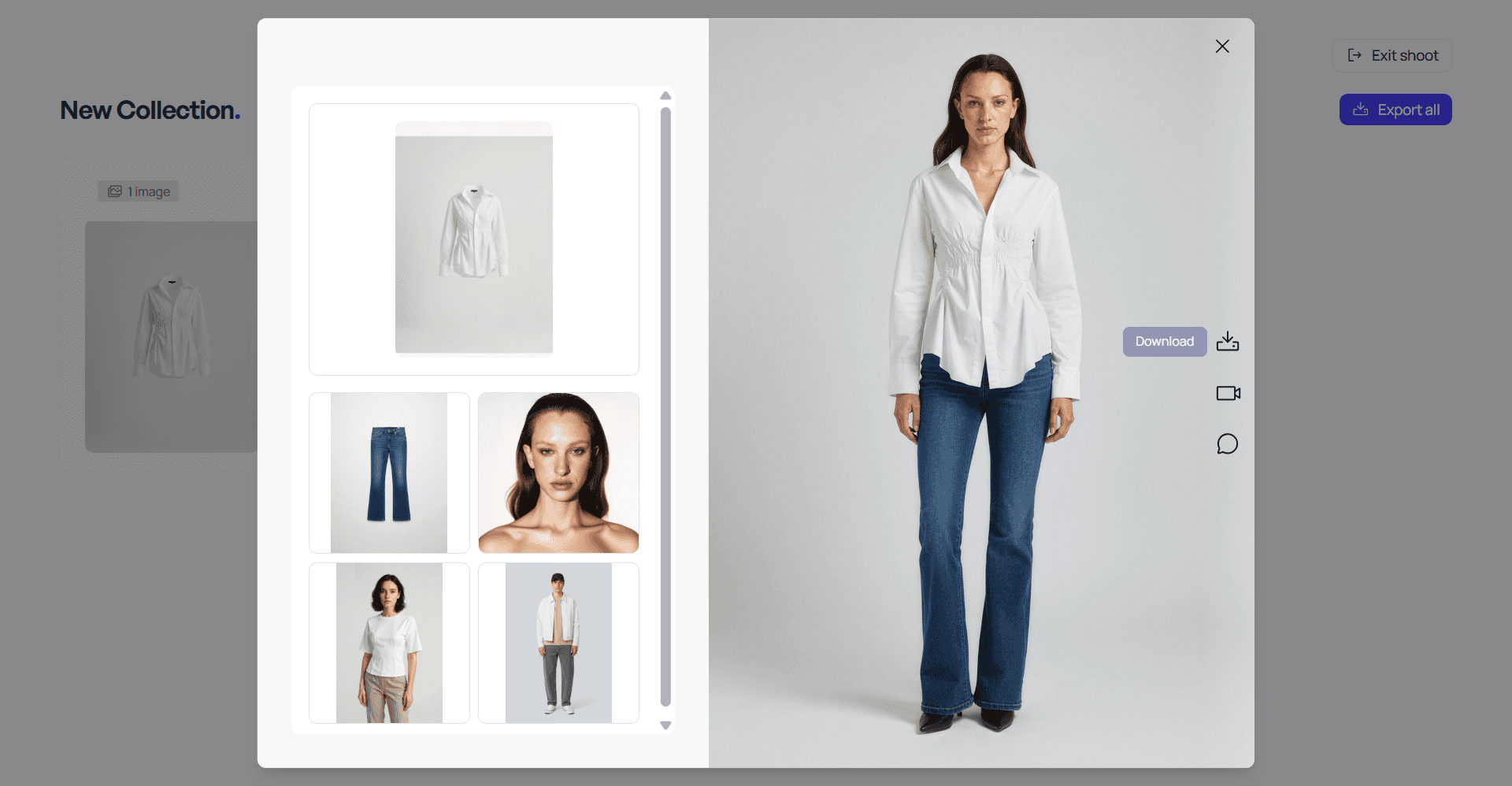
Once complete, your generated images will appear in the Shoots section and under Recent Shoots on your dashboard, ready for download and use.