
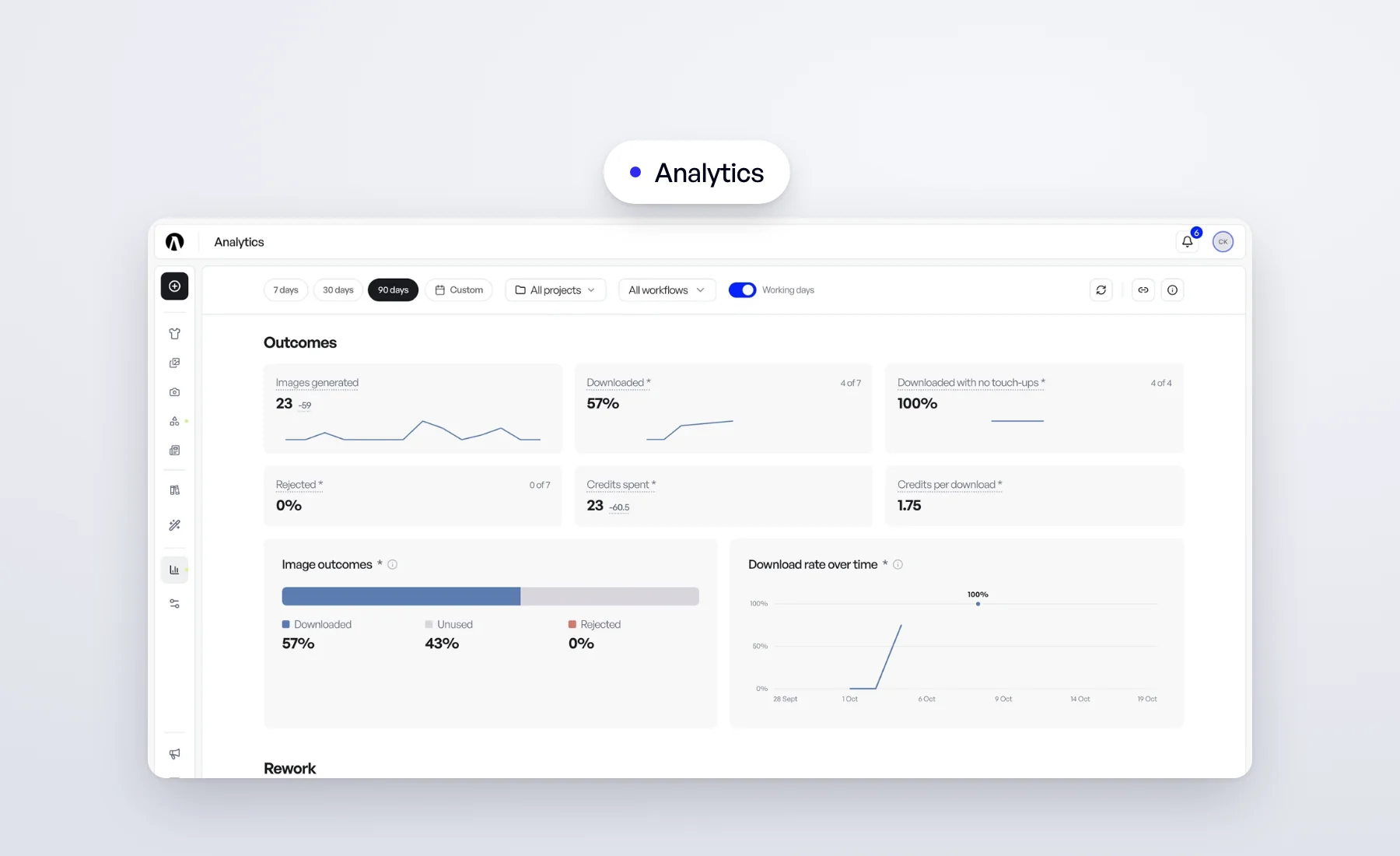
Generating an image is the start, not the finish. What matters is whether it ends up on your product page, how much work it took to get there, and what it cost. Until now, answering those questions meant counting exports by hand.
Analytics, in the sidebar, now answers them for your whole organization, on one page.
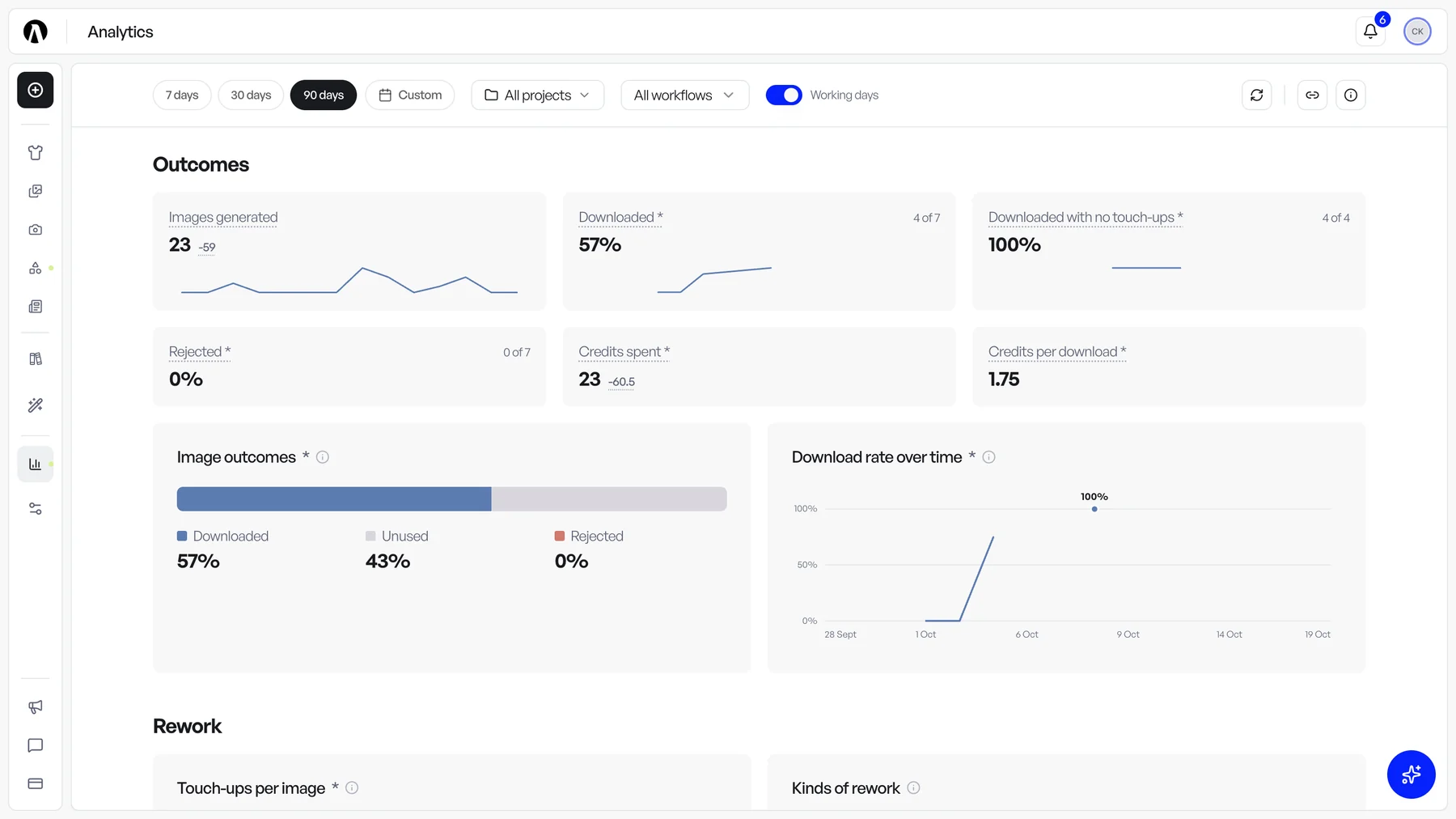
What happened to your images
Every image your team generates lands in one of three outcomes:
- Downloaded — saved or exported, in any version.
- Unused — still in the gallery, never downloaded.
- Rejected — archived or deleted without being downloaded.
The tiles at the top give you the headline: images generated, how many were downloaded, how many were downloaded without a single touch-up, and what each download cost in credits. Download rate over time shows whether that share is going up as your team gets used to the studio.
How much rework they needed
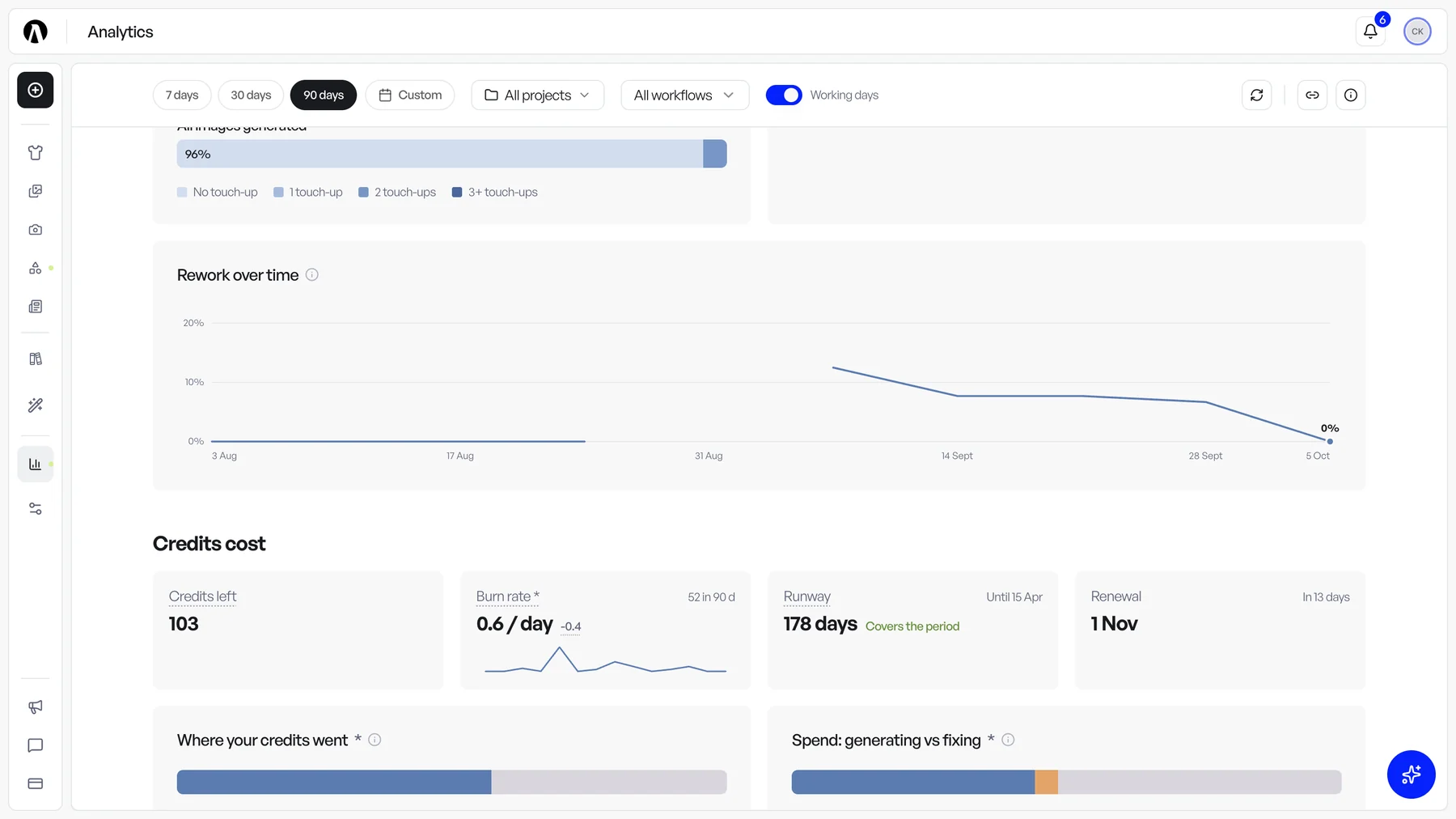
A touch-up is one Edit with AI or one detail fix on an image. Touch-ups per image shows how many images shipped straight out of generation and how many needed one, two or more passes. Kinds of rework goes wider and counts everything run on an image afterwards: edits, detail fixes, upscales, background removals, crops.
This is the section to watch when you change how you set up a photo shoot. If a new model, angle shot or background means fewer touch-ups, you will see it here.
Where your credits go, and how long they last
The credits section works the same on every plan:
- Credits left, your balance right now.
- Burn rate, the credits you spend per day over the period.
- Runway, how many days your balance lasts at that pace, and whether it carries you to your next renewal.
- Where your credits went, split between downloaded, unused and rejected images.
- Spend: generating vs fixing, so you know how much goes into new images and how much into reworking them.
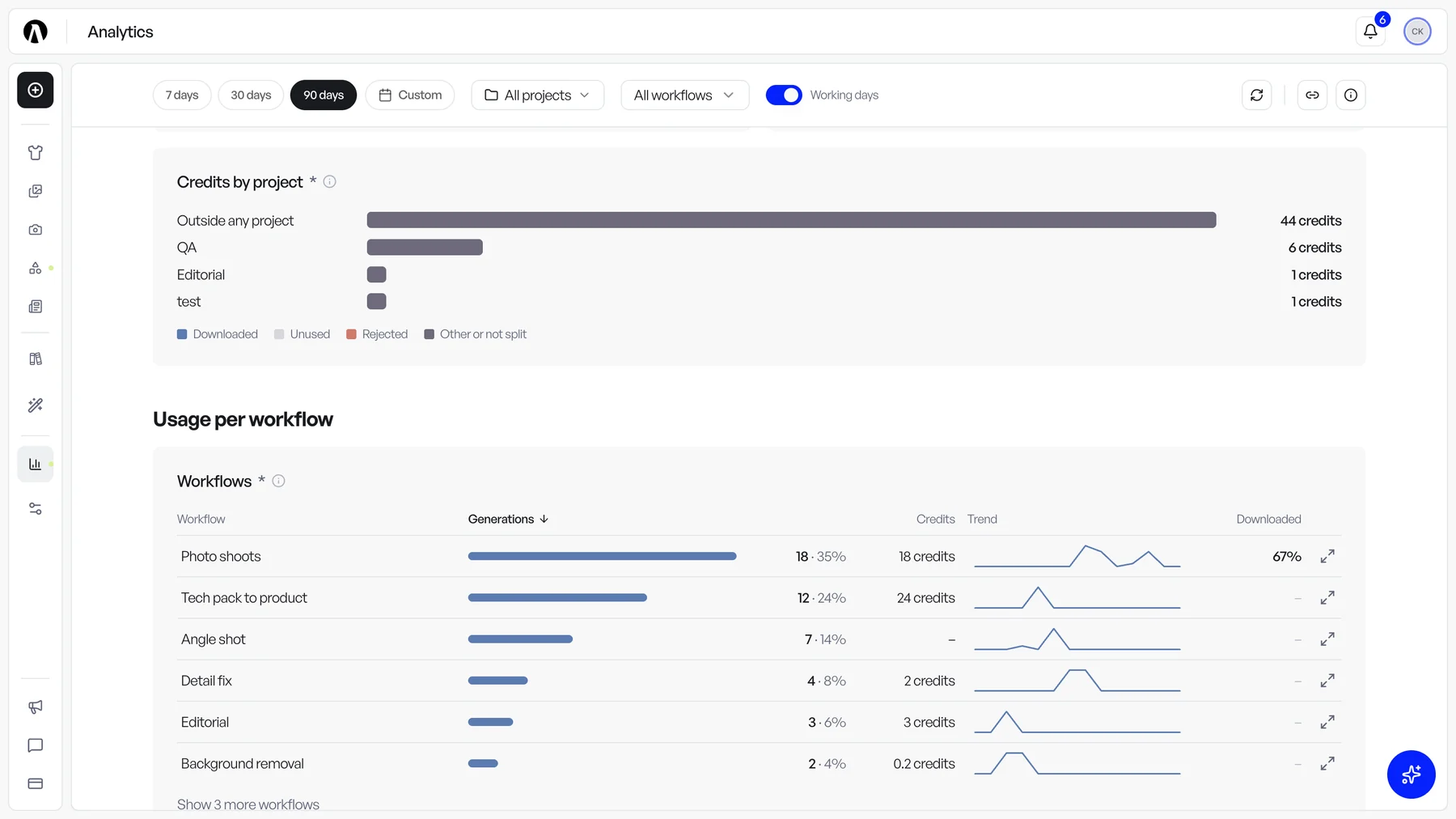
- Credits by project, largest first, with what became of each project's images.
On a plan billed in USD or EUR, figures read 1 credit for 1 USD or 1 EUR, as on your billing page.
How your team uses the studio
Workflows lists every tool your team ran, with its generations, its credits and the share of its images that were downloaded. Click a workflow's name to chart it alone, or Open details for its own breakdown: outcomes, touch-ups, activity over time and the projects that use it most. When your team works maps generations by weekday and hour, in your own timezone.
Built to be read quickly
- Filter by period (7, 30 or 90 days, or a custom range), by project and by workflow.
- Working days leaves weekends off the daily charts, without dropping them from the totals.
- Hover any figure, bar or point to see exactly what it counts. The small change next to a figure compares it with the period before.
- Copy a link to this view to send a colleague the page with the same filters.
Downloads are counted from September 28, 2026: figures that depend on them start there, and say so. The Help Center explains every card and how its numbers are counted.