
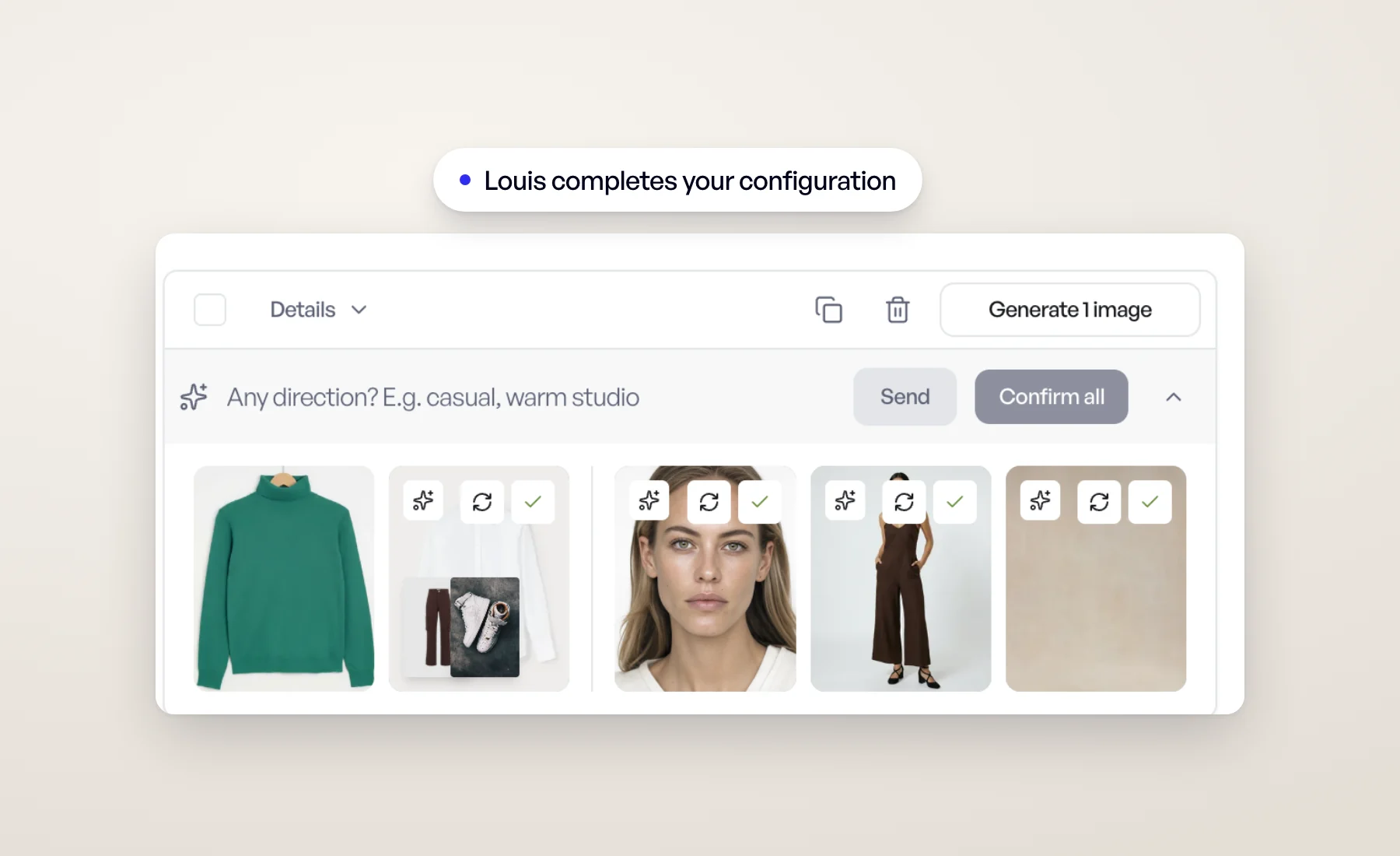
Setting up a photo shoot means a dozen small decisions per product. Which model? Which angle shots? Does the jacket need trousers, and which ones? Which background suits the collection? Multiply that by forty products and it is an afternoon.
Louis is here to take that work off your hands. Since late August he has been available to everyone in Veeton, in Beta: open him from the Louis button in the corner of the screen and talk to him the way you would brief a stylist. This fall he learned to do the part that takes the longest: casting your photo shoots.
Hand him a product configuration
On a project's setup page, every product configuration that is still missing something now shows a ✨ Complete button: let Louis complete it. Click it, give him a direction if you have one ("summer, relaxed, warm tones", or the name of a model you like), or leave the field empty, and press Complete: the button says how many slots he is about to fill.
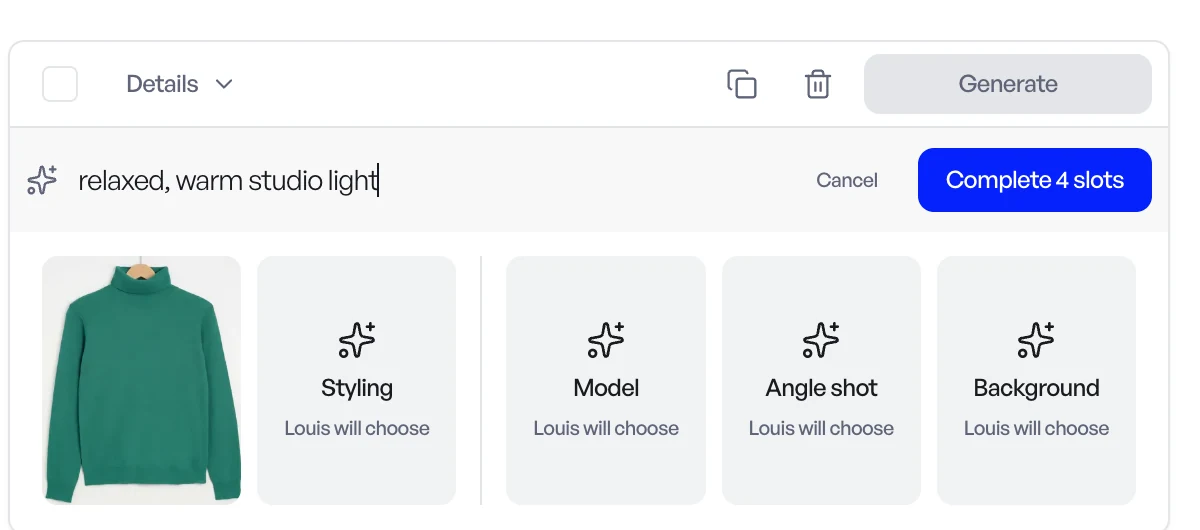
You then watch him work. A status line tells you what he is doing, and the slots fill in one after the other: styling, model, angle shot, background, each with a short title explaining the choice. He starts from what your organization already uses, your own models and angle shots, so the result looks like your brand rather than a generic catalog.
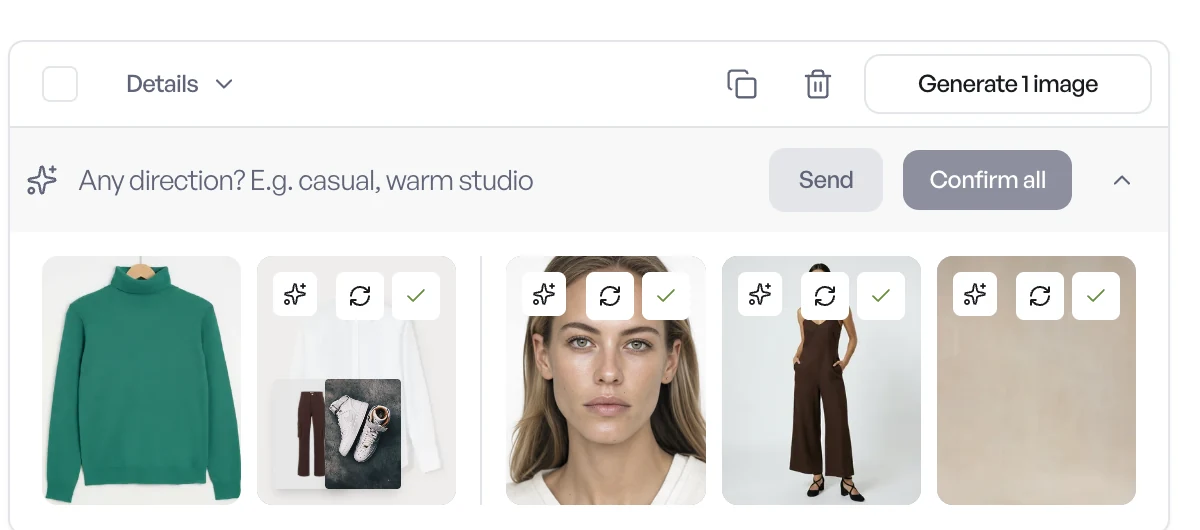
When he is done, you stay in charge:
- Confirm all keeps every pick.
- Redo on a single slot runs him again for that slot only.
- The direction line stays open under his picks: write "use Tara instead" or "no styling" and he changes just that, keeping the rest.
Already configured a product yourself? The ✨ in the card's toolbar, Adjust the choices with Louis, asks him to review it and follow a new direction.
A whole project in one pass
Select several configurations, or Select all, and the toolbar offers Complete … with Louis. One direction applies to every product. Louis casts the first configuration, then matches the others to it, so the set reads as one photo shoot instead of forty separate decisions. Confirm all or Undo all for the whole set when he is done, or rework a single row.
Two promises he always keeps:
- Complete never overrides what you chose. A model or angle shot you already picked stays; he only fills the gaps. When you ask him to adjust a configuration, he changes what your direction asks for, and every change can be undone.
- He never generates. Completing a configuration spends no credits. You launch with Generate when you are happy, and you see the image count first.
The full walkthrough is in the Help Center.
Ask him anything else
The setup page is where Louis saves you the most time, but the chat goes further.
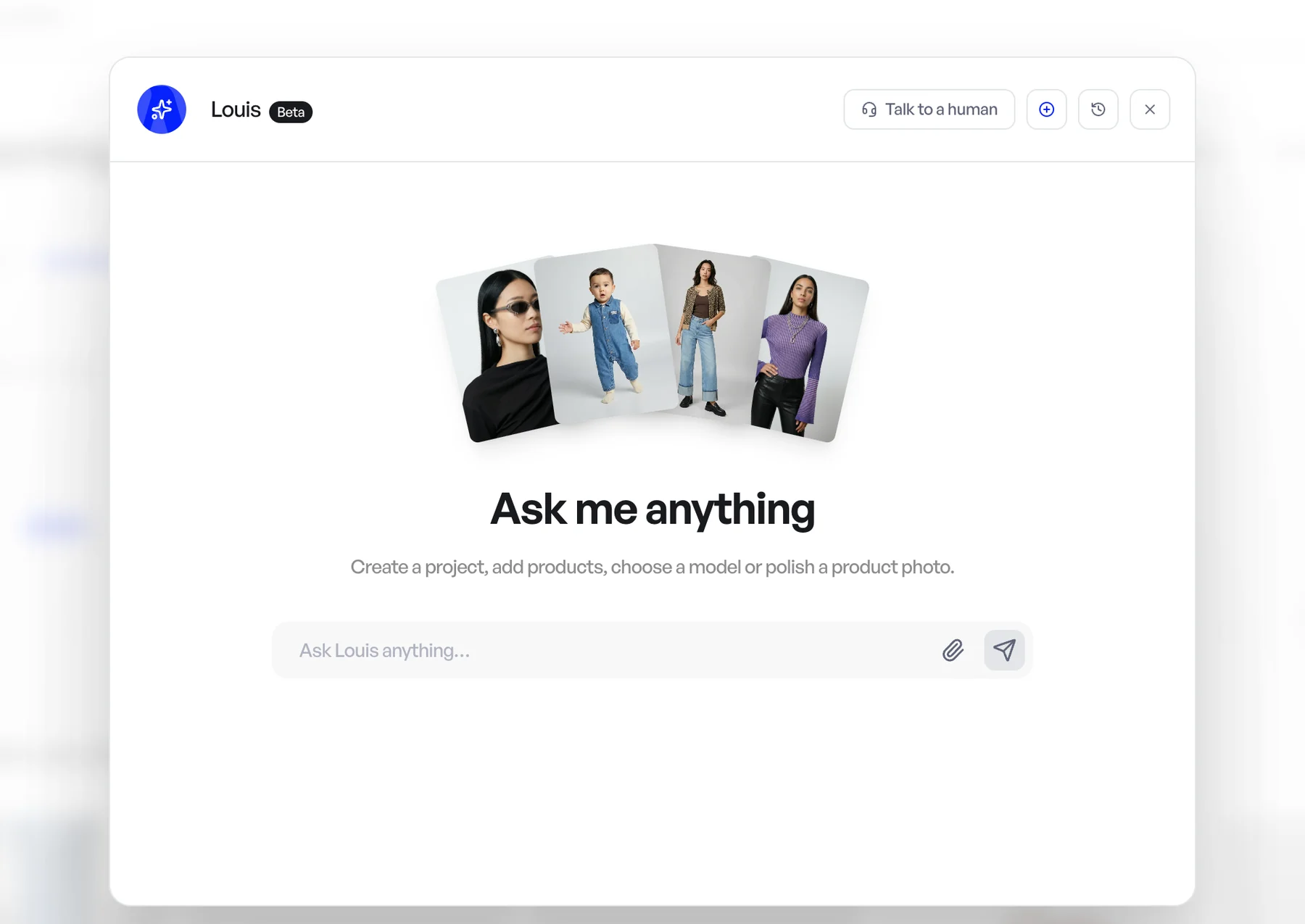
- How-to questions. Louis reads the Help Center to answer, so "how do I export with my own file names?" gets the real steps.
- Show, don't describe. Drop an image anywhere on the panel, paste it, or use the paperclip: up to four per message. A reference you like, a photo with a problem, a worn piece you want made into a product. More on sending images.
- Work across the studio. He can create a project, add products, look through your gallery, run the Product beautifier, swap a model or prepare an export. He asks you to approve anything that spends credits or changes what is already there; small steps, like adding an existing product to a project, he does right away.
- He keeps an eye on your results. After launching a generation, Louis watches for it and posts the results in the conversation when they are ready. Stop watching if you would rather move on.
- Notes that stick. Tell him a preference worth remembering, and he will take it into account next time.
When you would rather talk to a person
Louis is not a wall between you and our team. Click Talk to a human in his header and the support chat opens with your conversation attached, so whoever picks it up already knows what you asked and what you tried. When we reply, a red badge on the chat button lets you know, on whichever computer you sign in from. How the handover works.
Louis is still in Beta, and he is improving every week. Tell him, or us, what you would like him to take on next.