
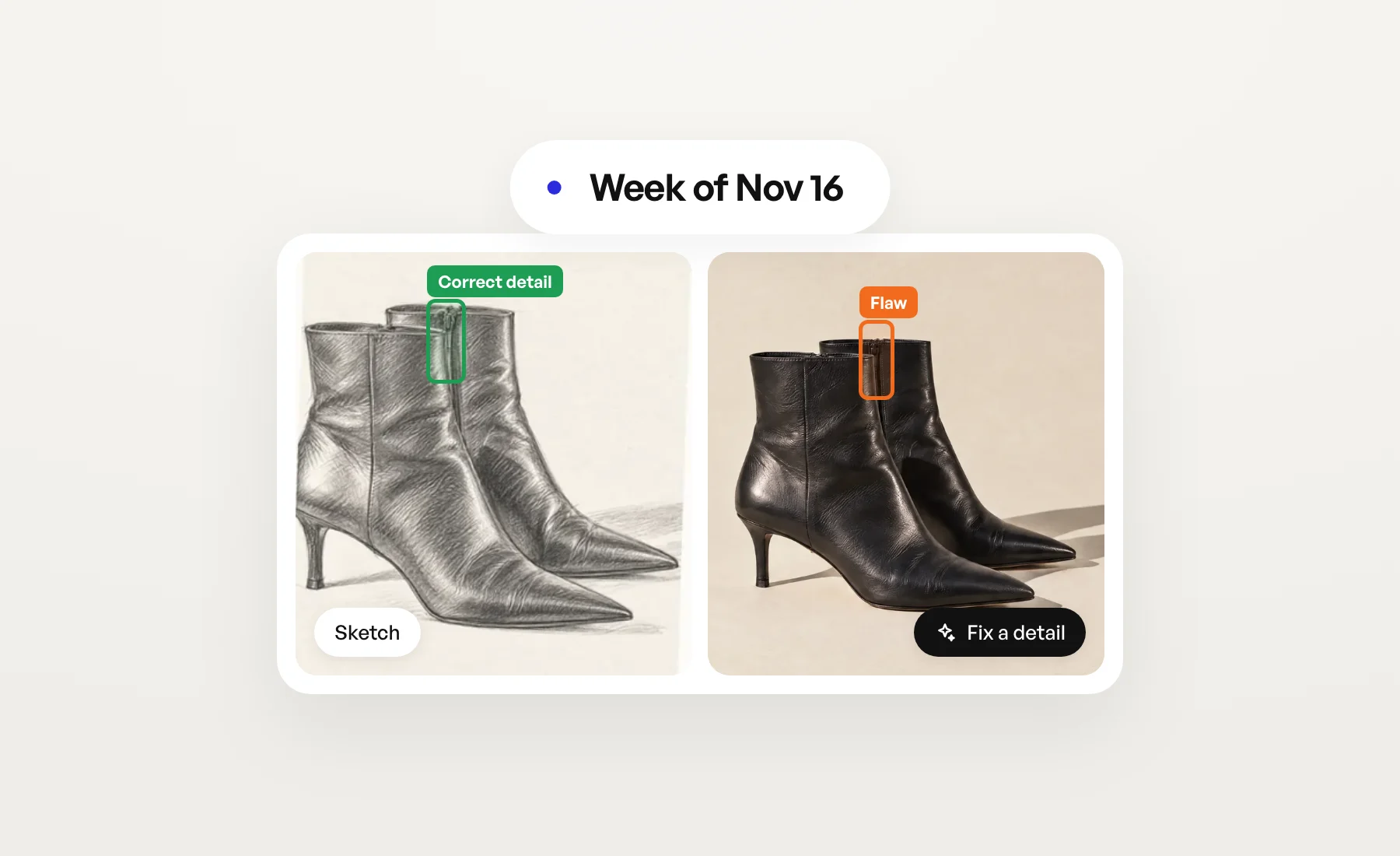
A render can get almost everything right and still miss one detail. This week you can fix that detail against the drawing it came from, run Veeton from the AI agent you already use, and find every render under your own reference.
Fix a detail on your sketch renders
A zip on the wrong side, one button too many, a seam that isn't in your drawing: until now, a render with one wrong detail meant rendering it again or describing the change with Edit with AI.
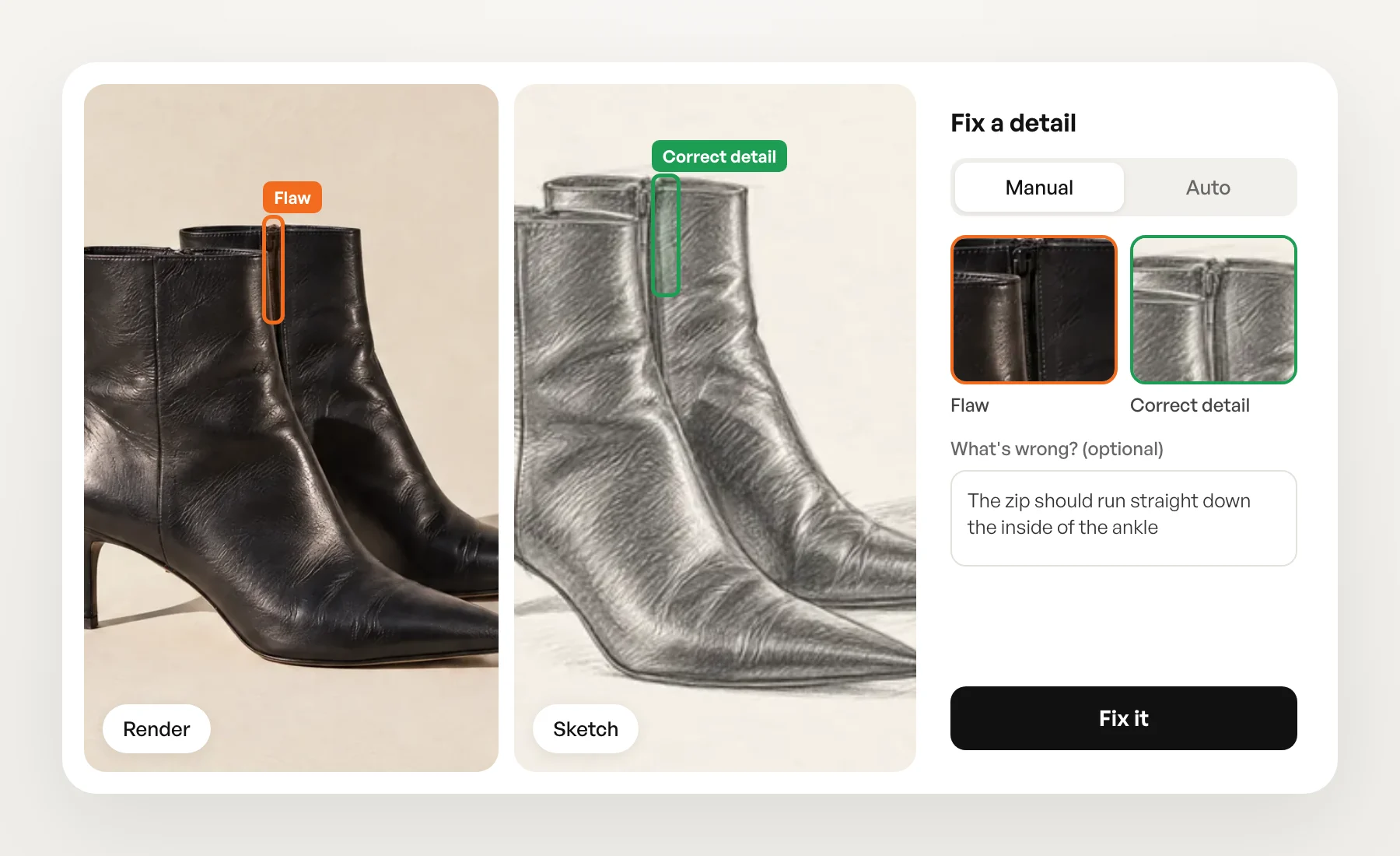
Now Fix a detail works on Sketch to image renders. Open a render and click Fix a detail. Frame the flaw on the render, then frame the right detail on your sketch, which sits beside it as the reference. Add a few words under What's wrong? (optional) if it helps, and click Fix it. Only what's inside your frame changes: the rest of the render stays exactly as it was.
Everything you know from photo shoots works here too: up to four details in one fix, Auto to let Veeton find the flaw itself, and the same 5 credits a fix, refunded when nothing could be fixed. Your sketch tells Veeton the detail's shape and where it sits, not its color: a pencil line isn't the fabric's color, so the fixed detail keeps the render's. More in the help article.
Veeton, inside your AI agent
Every paid plan can now connect Veeton to Claude, ChatGPT or Claude Code. Ask in plain words for photo shoots, packshots and edits on your own products, and look at the results without leaving the conversation. It works on the same products, results and credits as the app.
To set it up, open the new MCP page under Configuration: it holds the server URL, copied in one click, and the steps for each agent. The full story has a 30-second video.
Renders that keep your reference
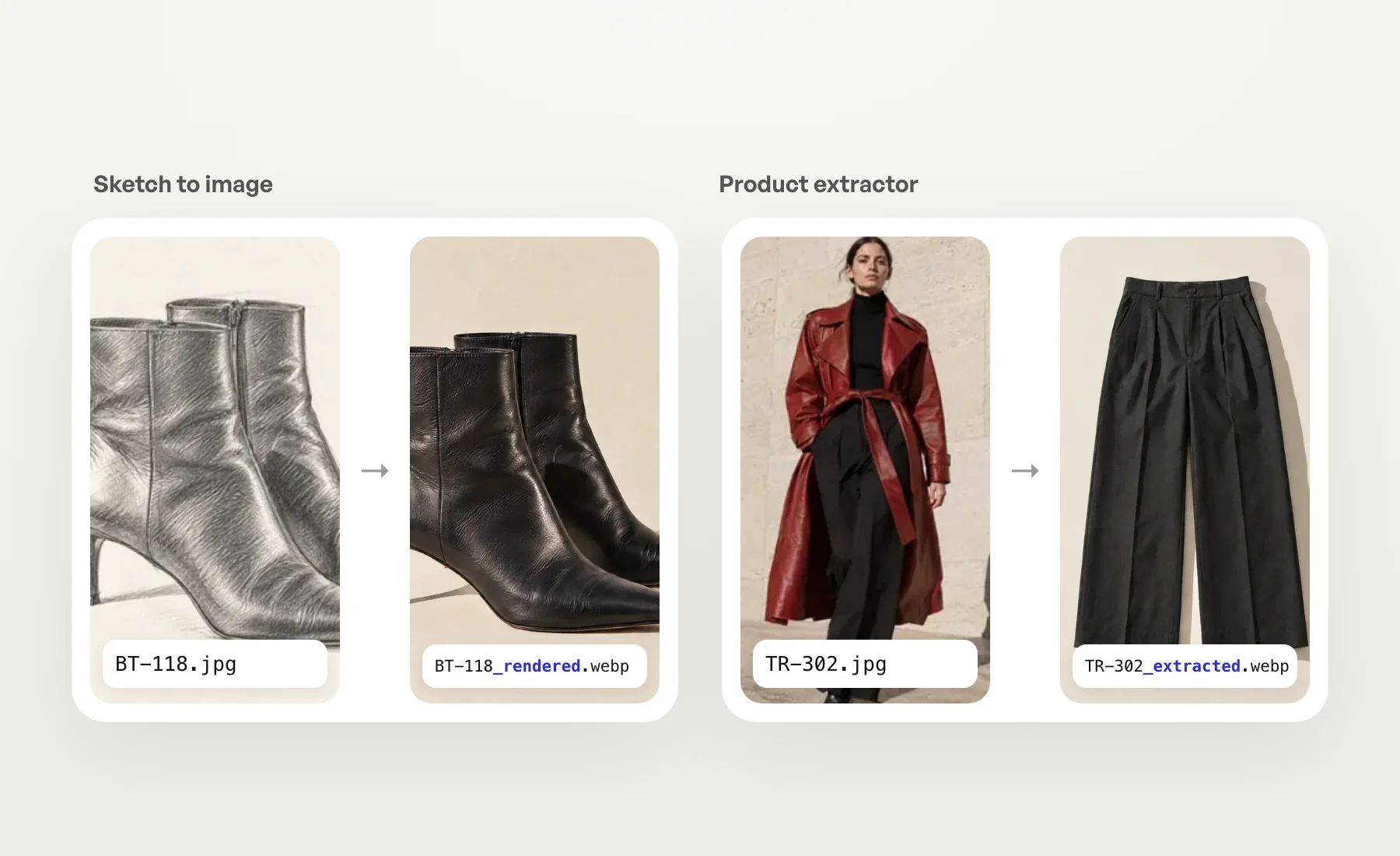
Your sketches and worn photos are usually named after the article: BT-118.jpg, TR-302.jpg. Their results now keep that name. A Sketch to image render downloads as BT-118_rendered.webp, a Product extractor result as TR-302_extracted.webp, whether you download one image or export a zip, and edits made from them carry the name on. No more matching task numbers to articles by hand. More in the help article.
A faster results gallery
The results gallery is the page you open most, so we made it quicker. Thumbnails now load in the order you see them, each one is downloaded once instead of twice, and the grid no longer jumps as it fills. While a photo shoot runs, finished images land together instead of refreshing the gallery one by one, and a tab left open overnight picks up new results again without a reload. In a photo shoot's setup, label filters and typing in the Advanced panel no longer lag.
Fixes and smaller changes
- A result shows the image it was made from. A photo shoot result's details now show the exact product image it was generated from. When it ran on the packshot Product beautifier made, that's the packshot you see, not your original upload.
- Your own photos stay unmarked. Product photos and imported images that nothing in Veeton has changed no longer carry the credential that marks an image as AI-generated when you export them. More in the help article.
- Product configurations keep their styling. Deleting a product configuration while a photo shoot was saving could drop the styling of the others. It no longer does.
- Videos stop showing an aspect ratio. A fashion video keeps the shape of its start image, so its details no longer show a ratio it wasn't made in.
- For API users. Photo shoots launched through the API now show their product in the results gallery. New organizations see what they make in the app through the API, the MCP connector and webhooks too.
Open Veeton to try it.