
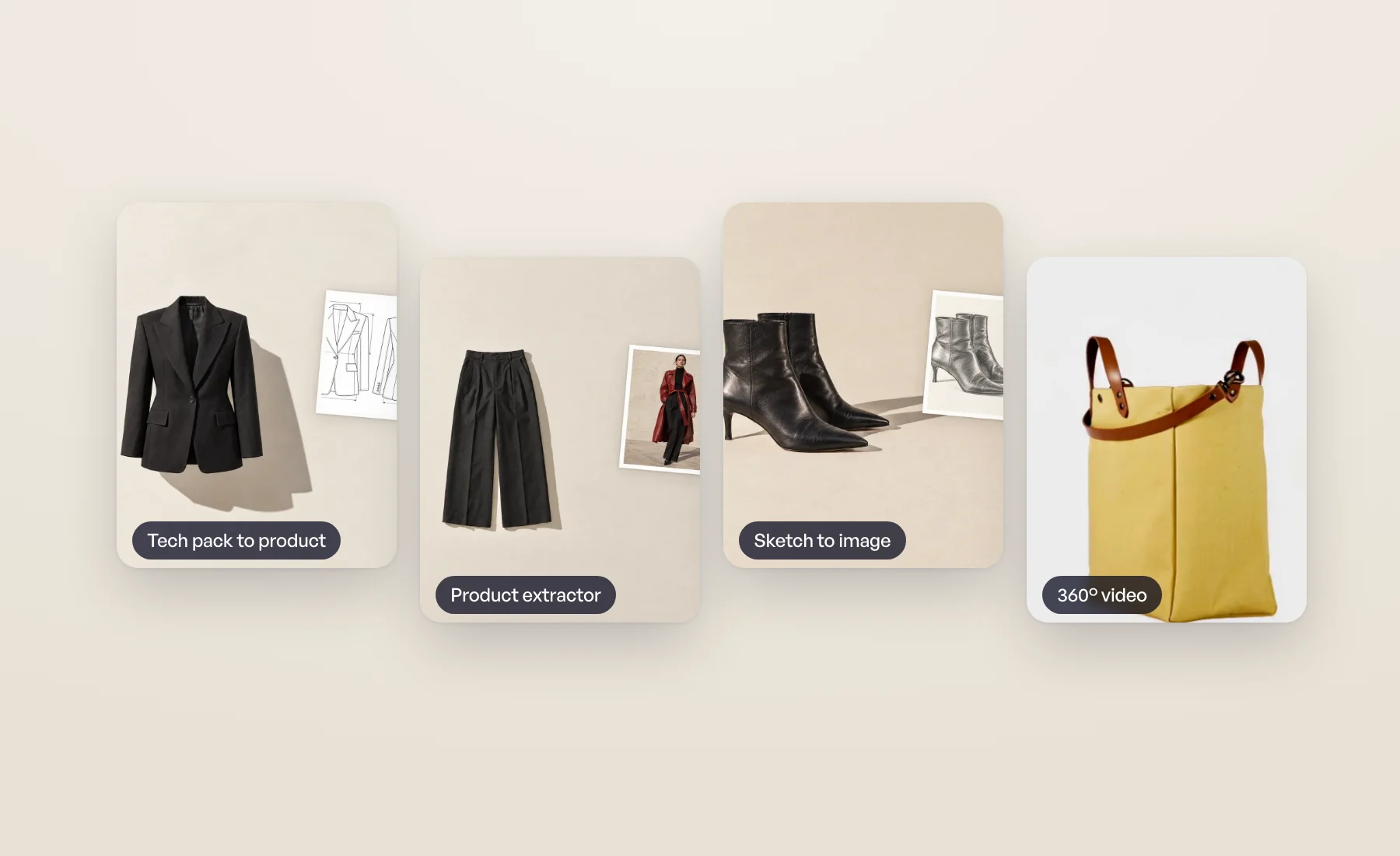
A product image doesn't always start with a clean packshot. Sometimes it starts with a design file, a photo of someone wearing the piece, or a drawing on a board. Between mid-August and early September we added four tools that start from exactly those, and one that takes a product further.
All four sit in Studio › All tools and on your dashboard. They work inside a project, and their results land in Results like everything else.
360° video: let your product turn
A still shows one side. A 360° video shows them all. Pick a product from your library, choose 5s or 10s, and click Generate 360° video. Veeton turns the views you uploaded into a single rotating clip, ready for a product page or a social post.
It works from the product photos you uploaded, not from generated images, so a product needs its views in Veeton first. Like every fashion video, it costs 2 credits per second.
Tech pack to product: see it before it's sewn
Your design team already writes tech packs. Tech pack to product reads them and renders the product as a clean front or back view, so you can show an item before a sample exists.
Drop your PDFs (up to 20 at once), pick Front, Back or both, choose the format, and launch. Ten tech packs with both views give you twenty product views in one go. Each view costs 20 credits.
Product extractor: from a worn photo to a flatlay
You have the campaign photo, a lookbook shot or a picture from the showroom, but no packshot. The Product extractor takes a photo of a garment worn on a person and turns it into a clean flatlay on the background of your choice.
Upload one or several photos (up to 50 per launch). When the model wears more than one piece, tell Veeton which to take with the Type of product: Upper body, Lower body or Full body. Then click Extract products. Each extraction costs 10 credits.
It handles clothing: tops, bottoms, dresses and jumpsuits. For shoes, bags and accessories, a photo shoot is still the way to go.
Sketch to image: from the drawing board to a product image
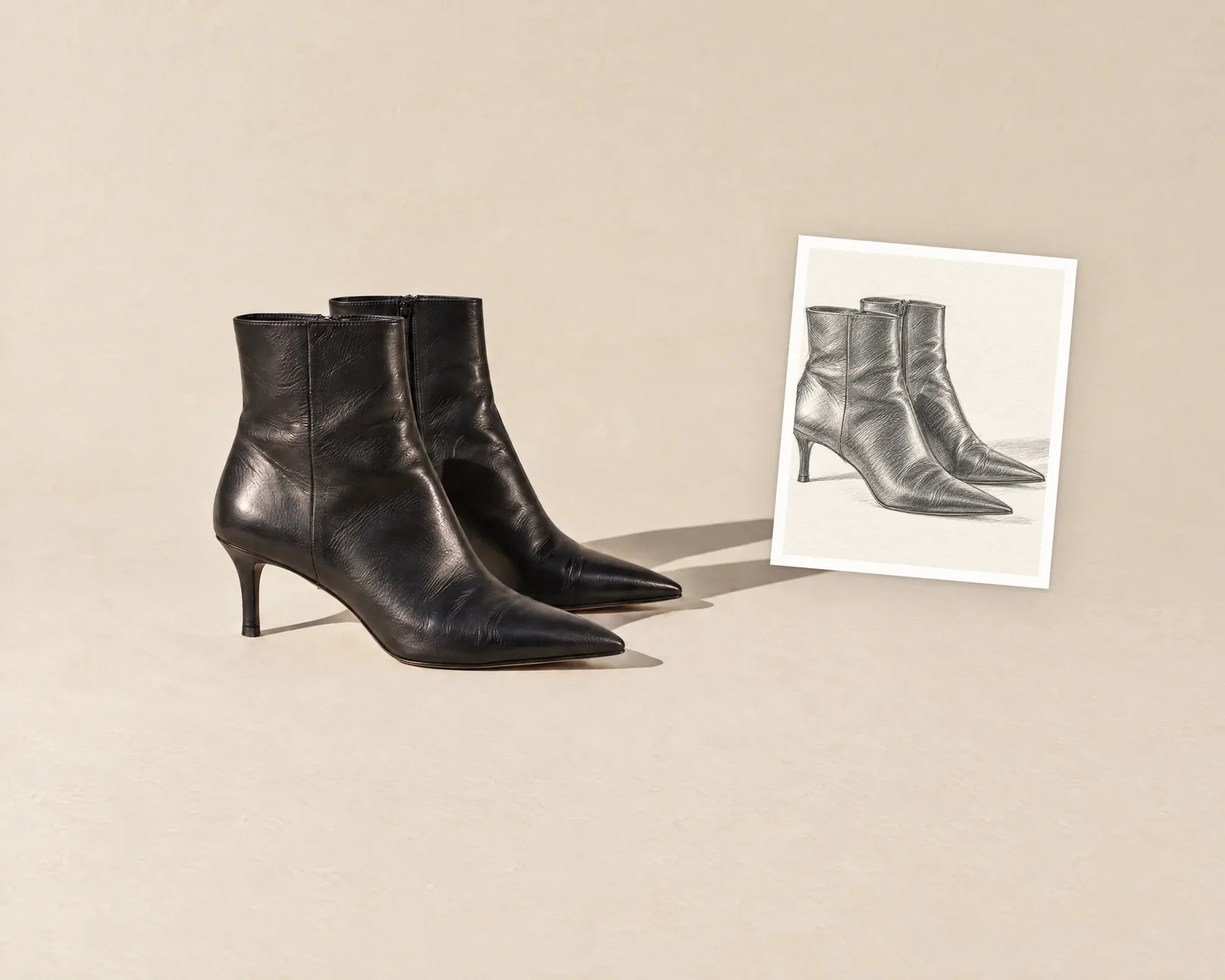
A hand drawing, a flat or a design board is enough. Sketch to image renders it as a product image. Leave the interpretation to Veeton, or steer it: pick a color on the wheel, type a hex code or choose a Pantone shade, and upload a texture, a photo of the fabric the product should be made of.
Drop up to 20 sketches, then click Render products. Each render costs 10 credits, and a render that fails is refunded.
And every image can be edited with AI
A first render is rarely the last word. Since September 15, Edit with AI works on every image result. Tech pack to product views, extracted products, sketch renders, Editorial shots, background removals and upscales joined photo shoots, Beautifier results, recolorings and model swaps.
Open the result, click the pencil, and describe the change. On an extracted product, you can keep the source photo as a reference so the print stays true to the piece as it was worn. On a sketch render, you can keep the sketch. Videos are the only results you can't edit this way.
Where to start
Each tool has its own guide in the Help Center: