
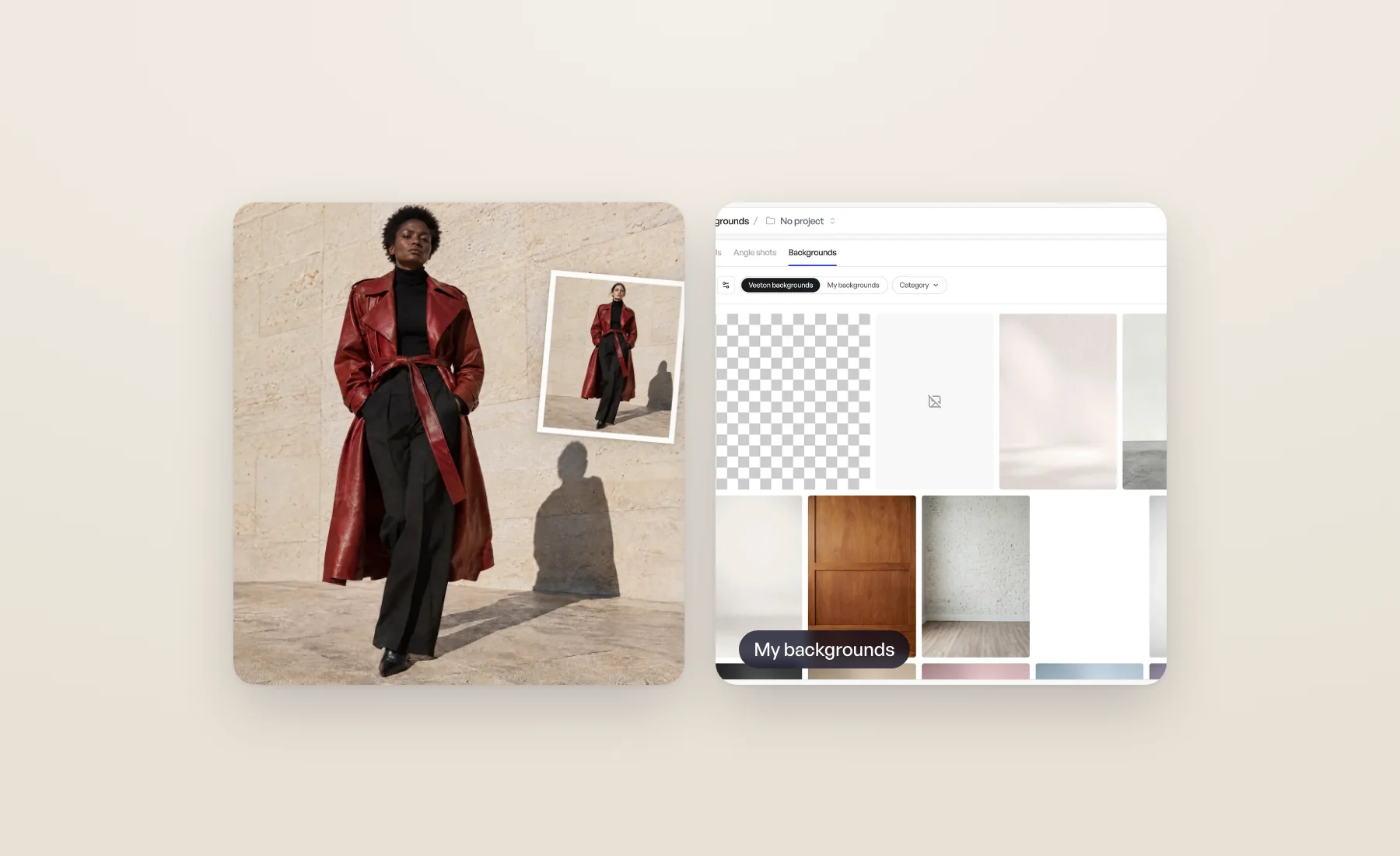
Our catalog of backgrounds covers a lot of ground: monochrome and pastel backdrops, textured walls, indoor rooms, outdoor streets. But your brand already has places that look like you. The flagship store with its oak shelves. The studio wall you shoot every lookbook against. The terrace where last summer's campaign was made.
You can now bring those places into Veeton. Upload a photo, and it becomes a background for your photo shoots, model swaps and editorials.
Upload a photo, shoot inside it
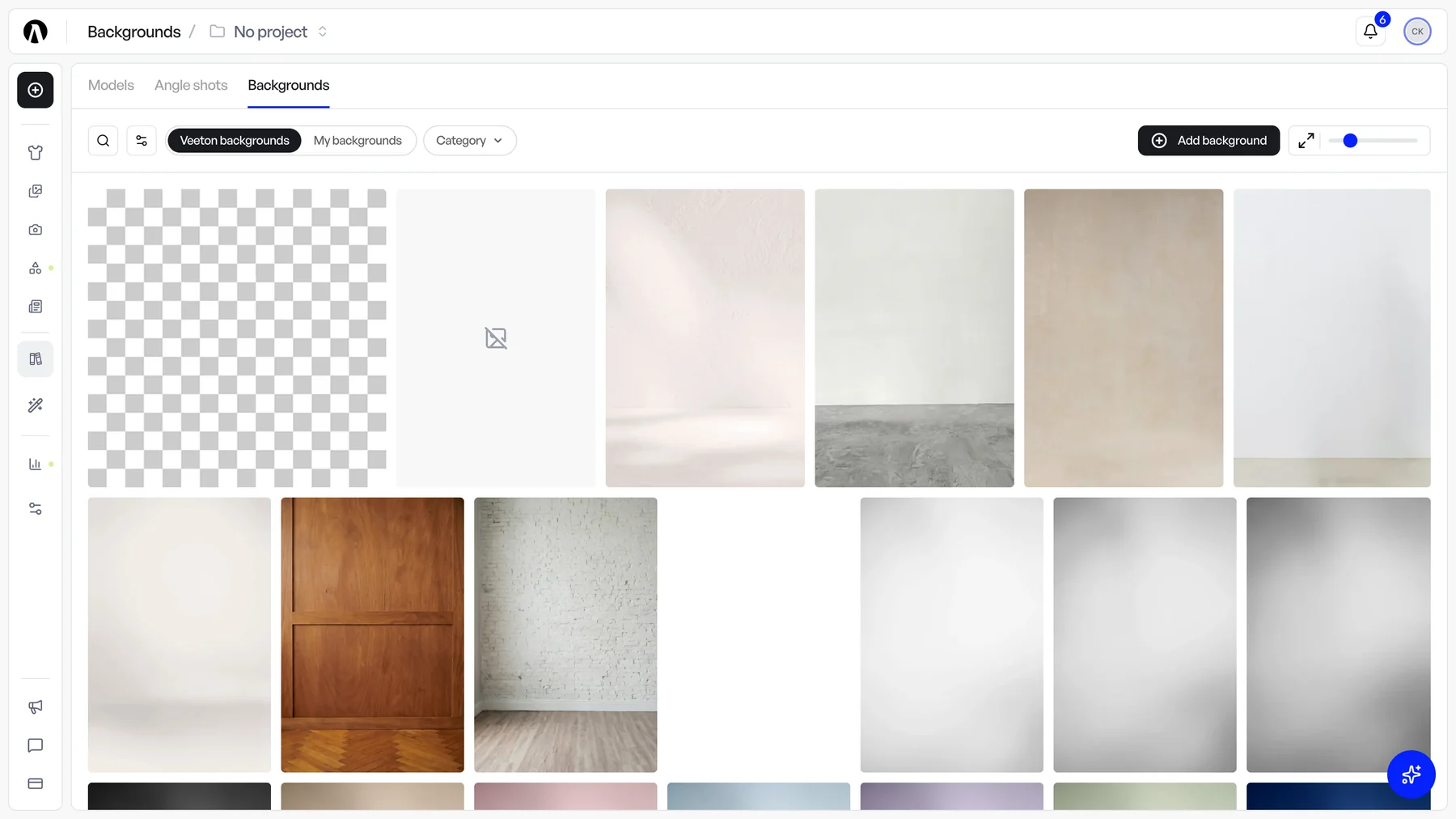
In a project, open the Backgrounds tab of a product configuration. At the top you now switch between Veeton backgrounds, the catalog you know, and My backgrounds, everything your organization has added.
Under My backgrounds, click Add background, choose Photo, and drop in your image. It is selected right away and shows Analyzing… for a moment while Veeton reads the scene.
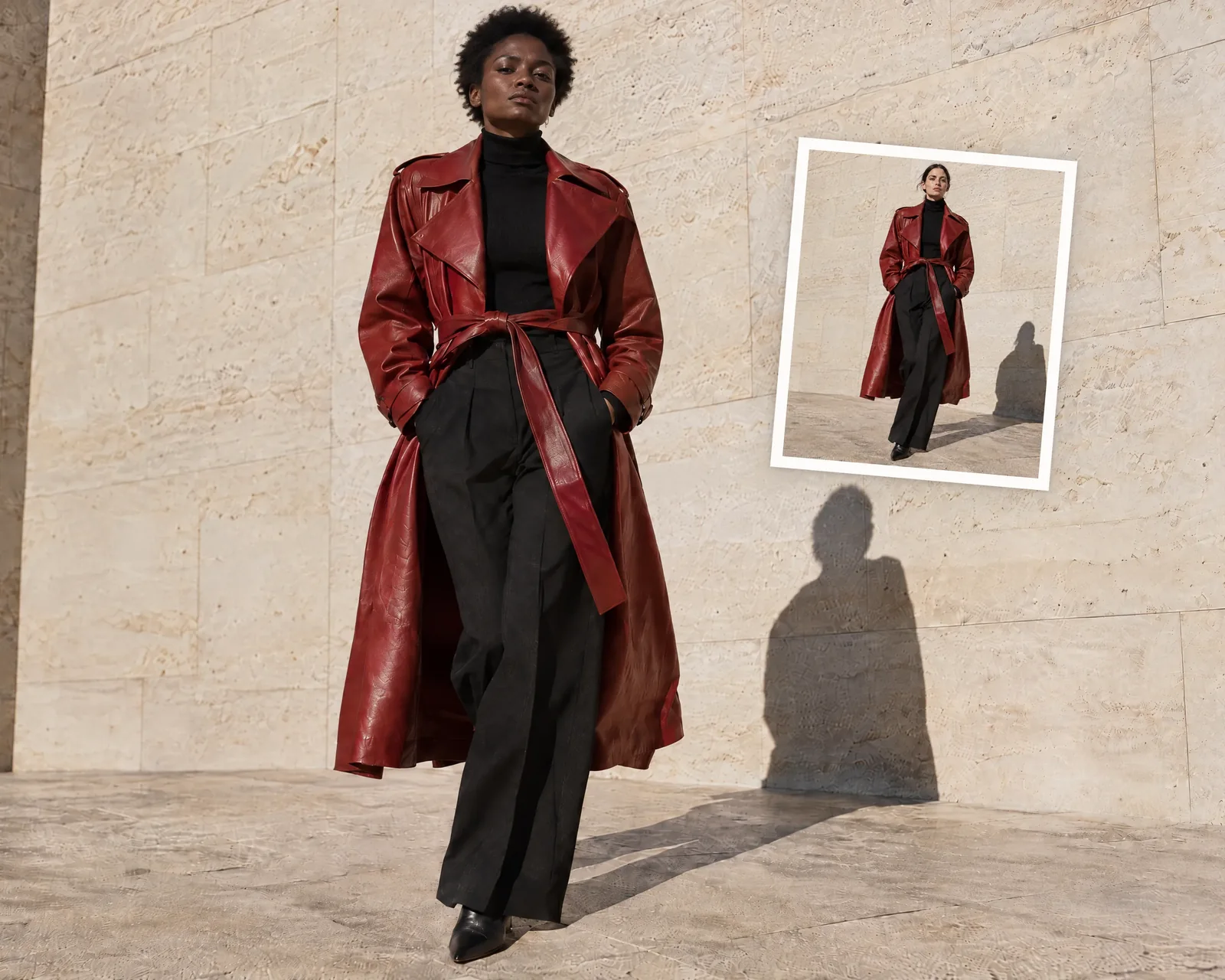
When you generate, Veeton places the model inside your photo and matches the light to it, so the model belongs in the scene rather than standing in front of it. For the cleanest result, use a photo with the same aspect ratio as your photo shoot.
A background you add is saved for your whole organization. Your colleagues find it under My backgrounds the next time they set up a photo shoot.
The same backgrounds, everywhere you need them
Your backgrounds are not tied to one tool. The Veeton backgrounds / My backgrounds switch now appears in every place you choose a background:
- Photo shoots — your uploaded photos, next to the catalog.
- Model swap — pick one of your photos and Veeton places the new model inside it, light matched. Your custom colors are there too.
- Editorial — in the Background step, switch to My backgrounds, or click Add background to upload a new photo without leaving your editorial.
- Product beautifier — your custom flat colors, saved by hex code, as before.
One library for all your backgrounds
Every background your organization adds lives in Assets › Backgrounds, next to your products, models and angle shots. From there you can:
- Add a photo or a custom color, ready for your next photo shoot.
- Rename a background so the team knows which store or season it belongs to.
- Delete the ones you no longer use. Images already generated with them are kept.
- Filter by Created by to see who added what, once at least two people on your team have added backgrounds.
A few tips for great results
- Shoot the place empty. No people, no products in frame: the model is added when you launch.
- Leave room for the model. A wide, uncluttered area in the middle of the frame gives the best placement.
- Match the format. A portrait photo for a portrait photo shoot, a square one for square images.
- Tag the places you shoot often. Backgrounds take tags like the rest of your library, so a season or a store is one click away in the picker.
Want to compare places quickly? Select several backgrounds in the same photo shoot: Veeton generates each one separately, so you see the same look in your store, on your terrace and against a clean studio backdrop side by side. More on choosing backgrounds in the Help Center.