
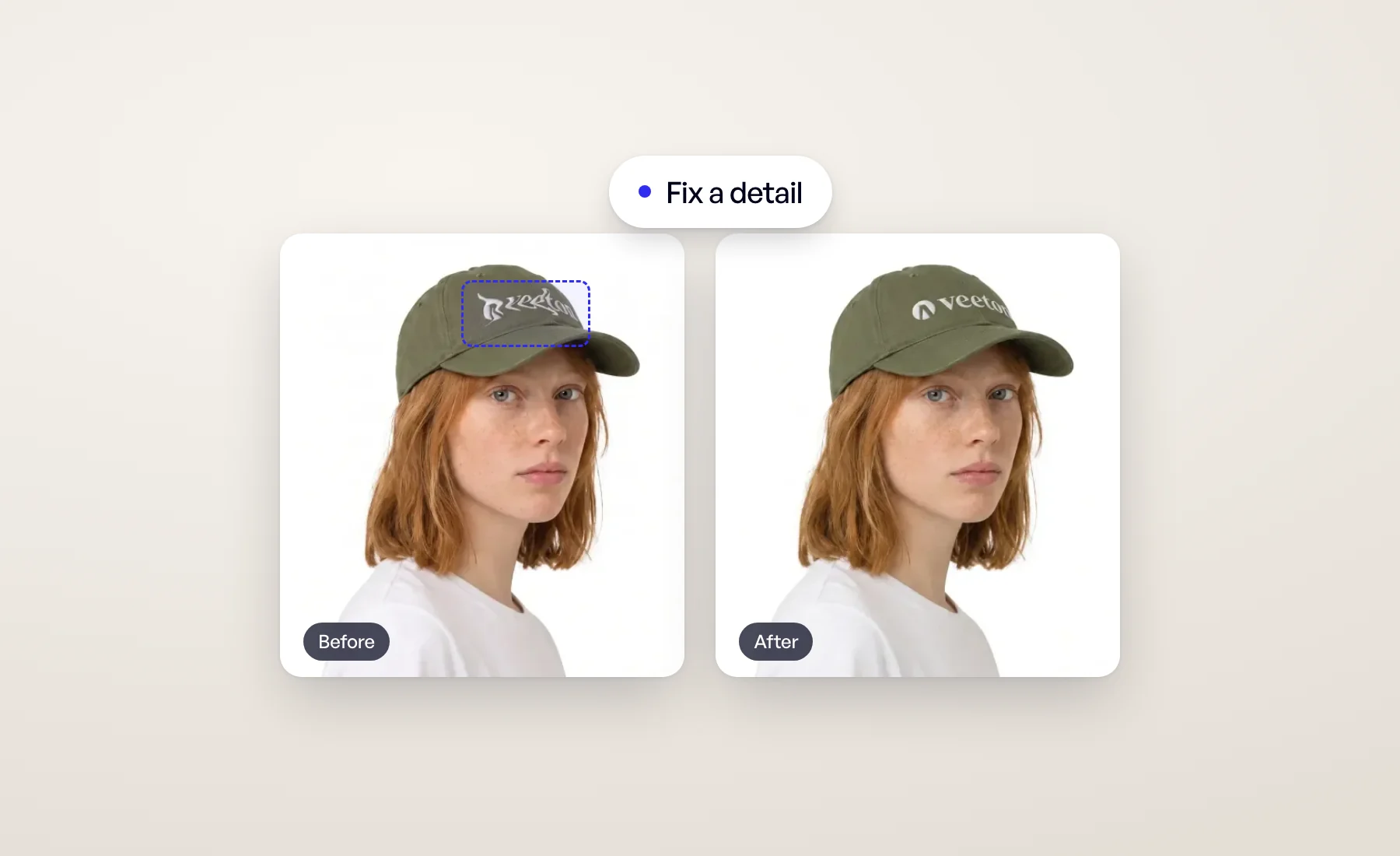
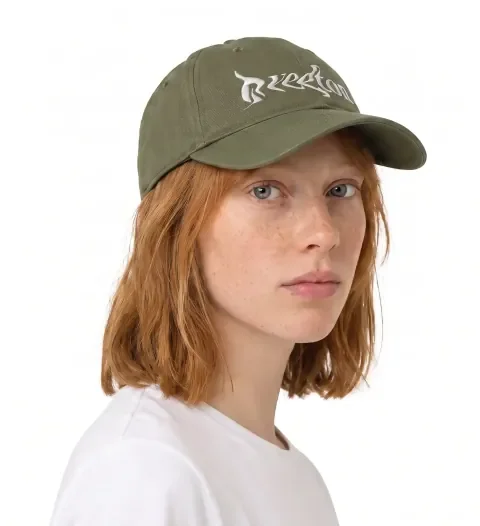
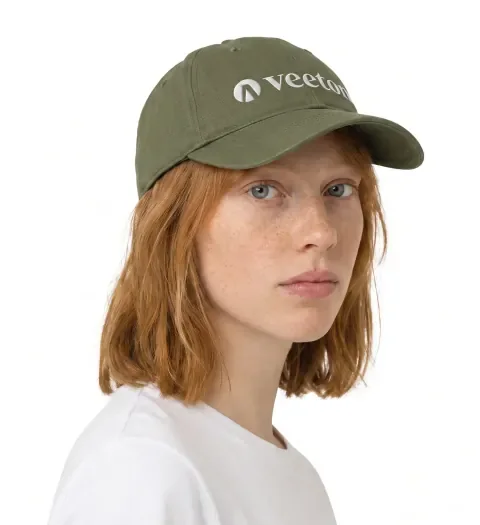
You picked the model, the angle shot and the light. The photo is right, except for one thing: the logo on the cap has lost a letter, or the jacket shows four buttons where your product has three.
Until now, the fix was to regenerate and hope the next version kept everything you liked. Fix a detail changes that. You point at the flaw, Veeton repairs it against your product photos, and the rest of the image stays exactly as it was.
Two ways to fix, nothing to type
Open a result from your Results gallery and click Fix a detail at the bottom right of the image, or find it in the image editor under AI tools. The panel offers two modes.
Auto. Click Auto fix and Veeton scans the image for the usual generation flaws: a warped logo, garbled lettering, the wrong number or style of buttons. It fixes what it finds against your product's reference photos. If nothing is wrong, the image is left untouched.
Manual. When you know exactly where the problem is, frame it yourself.
- Frame the flaw. Drag a box around it on the result. For a tiny mark, scroll to zoom in first.
- Frame the correct detail (optional). Draw a second box on your product photo, around the logo or the button as it really is. No photo of the detail? Upload a close-up instead.
- Click Fix it.
Two boxes, and that's it. There's no prompt to write and nothing to describe.
Only the box changes
The fix stays inside the frame you drew. The face, the pose, the light and the rest of the garment don't move. You get the shot you already approved, with the detail corrected.
A few things worth knowing:
- Two details at once. Once the first flaw is framed, Add a second detail lets you fix another spot in the same pass.
- Your original is kept. Each fix is added to the image's version history, so you can always go back.
- Made for small corrections. A box that covers too much of the image is refused as you draw it. For larger changes, use Edit with AI.
Now on more of your results
Fix a detail started on photo shoot results. Since then it has followed you to two more places:
- Product beautifier results (since September 22): a packshot, flatlay or ghost mannequin with a misdrawn label can be fixed the same way, against the product's own photos.
- Editorial results (since October 9): repair a logo in a campaign image without losing the composition.
Pricing
Fix a detail has been free since launch. From October 26, 2026, each fix costs 5 credits. A fix that fails is always refunded, and in Auto mode, when Veeton finds nothing to fix, you're not charged.
Try it on your next photo shoot
Open any photo shoot, Beautifier or Editorial result and look for Fix a detail. The full walkthrough is in the Help Center: How to fix a detail on an image.