
A library of twenty products organizes itself. A library of two thousand, shared by a team across several seasons, doesn't. Over the past few weeks we rebuilt how you sort, search and find things in Veeton, so the piece you need is a few clicks away however big your catalog gets.
Tags: one label, everywhere
A tag is a label you invent: SS27, Lookbook, Client X. Put it on anything: products, models, angle shots, finished results, even whole projects. Your tags are one list shared by your whole organization, so a collection tagged once is the same collection everywhere.
Select items in a library, click Add to tag in the bar that appears, and pick a tag or type a new one. Tags go two levels deep, so Lookbook can hold Winter and Summer.
Then use them:
- Filter any library by tag. Picking a tag includes everything under its sub-tags, and picking two tags shows only what carries both.
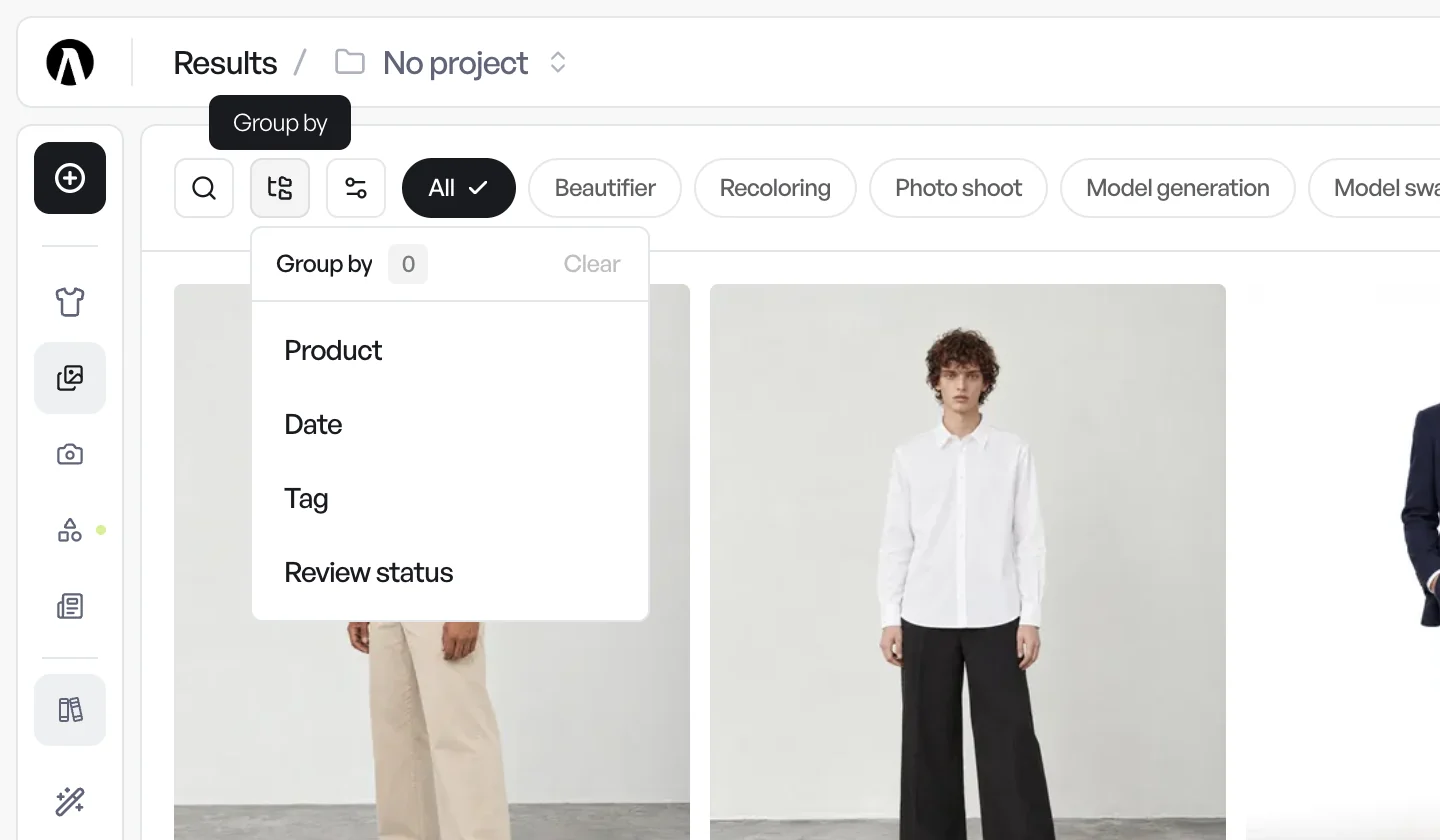
- Group by tag to lay a gallery out in one section per tag, each with its own count. It works in Results, Products, Models, Projects and your own Angle shots.
- Pick by tag while you set up a photo shoot: the same filter is in the product, model and angle shot pickers.
- Tag as you import: the import screen has a Tags field, so new products arrive already sorted.
Search in your own words
The search box in Assets › Products now understands what you mean, in English or French.
Words that name an attribute, like "bordeaux", "wool" or "turtleneck", are recognized as a color, a material or a neckline, and the products that match come first.
Everything else is matched by meaning. "Quiet luxury for the office" or "something for the beach" brings the closest products first, even when none of those words appear in a product's name. Veeton reads each product's color, pattern, material, season, neckline and style from its photos, so this works without you filling in a single field.
Models, angle shots and backgrounds under one roof
Your Models, Angle shots and Backgrounds now sit together under Assets, one tab each, right next to Products. Everything you cast a photo shoot with is in one place.
Angle shots also gained an Orientation filter: Front, Three-quarter, Profile or Back, read from how the body faces the camera. Group by orientation to see all your back views at once. It's in the library and in every angle shot picker.
Results, sorted the way you work
The results gallery has new ways to slice a busy project:
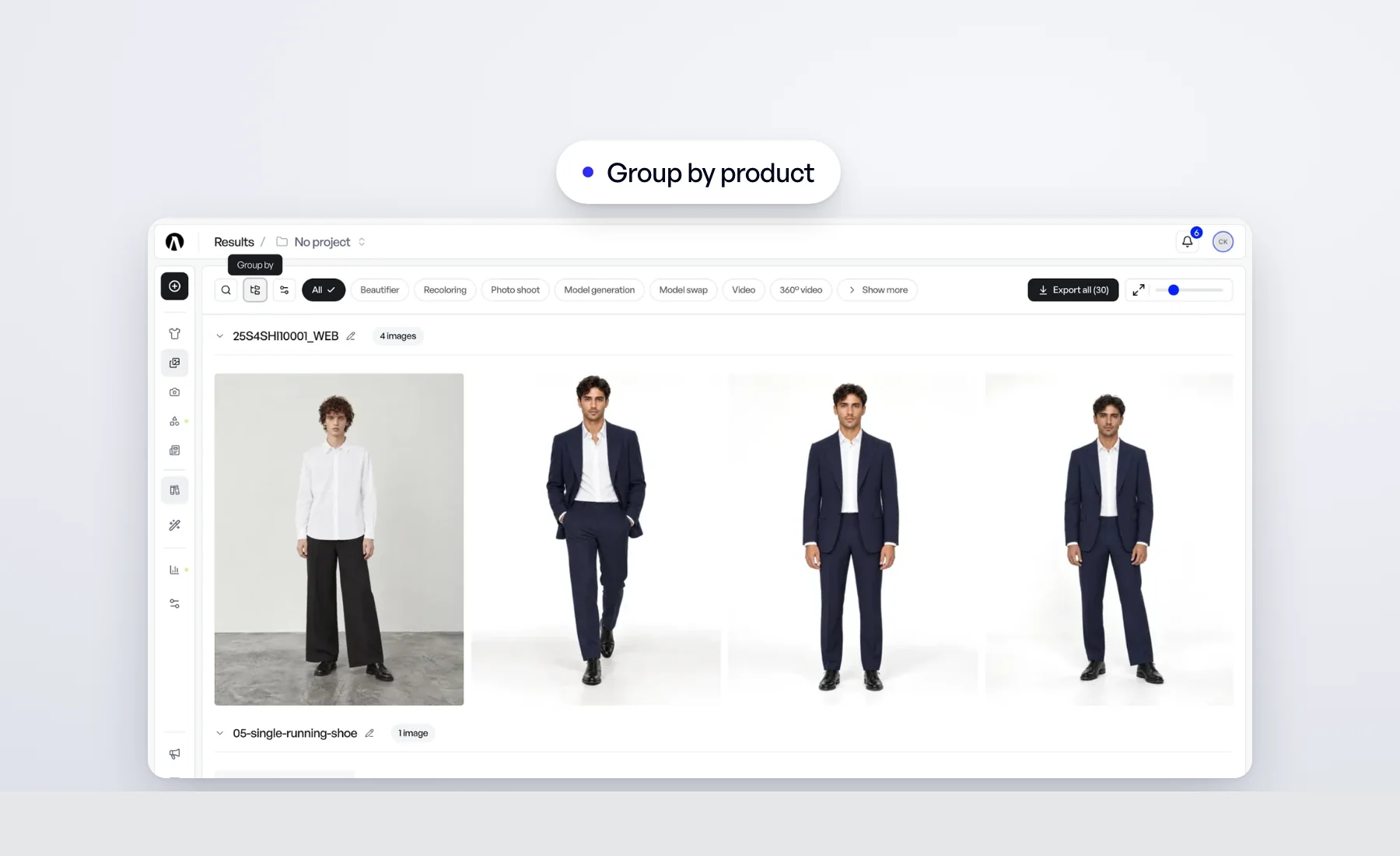
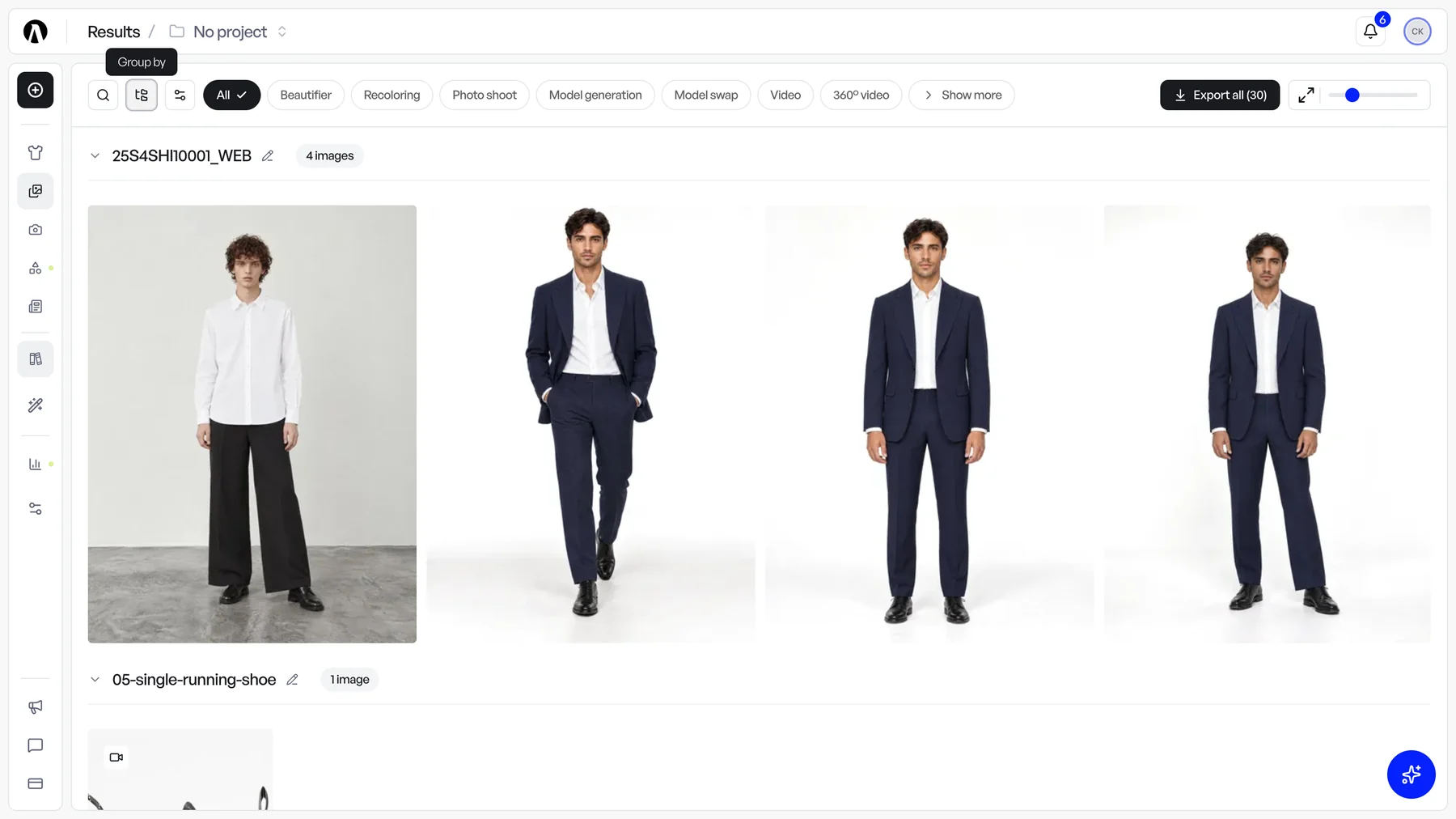
- Group by product. Every image made from the same product sits together, whichever tool made it. Extractions and renders with no product gather under No product.
- Launched by. Keep only the results you launched (Me) or a teammate's, by name.
And in Products and Projects, the Date filter is now a calendar: click a first and a last day for a range, or the same day twice for a single one.
Who made what
In a team, "who uploaded this?" is a real question. Created by now filters your Products, Projects, Models, Backgrounds and Angle shots by the member who created them, and it's in the photo shoot and model swap pickers too. Pick Me for your own, or a teammate by name. The row appears once at least two members have created something.
Read more
The details are in the Help Center: