This week Model swap takes several models in one launch, Louis sets up a photo shoot from the chat, and you can generate a background by describing a place.
Several models in one Model swap
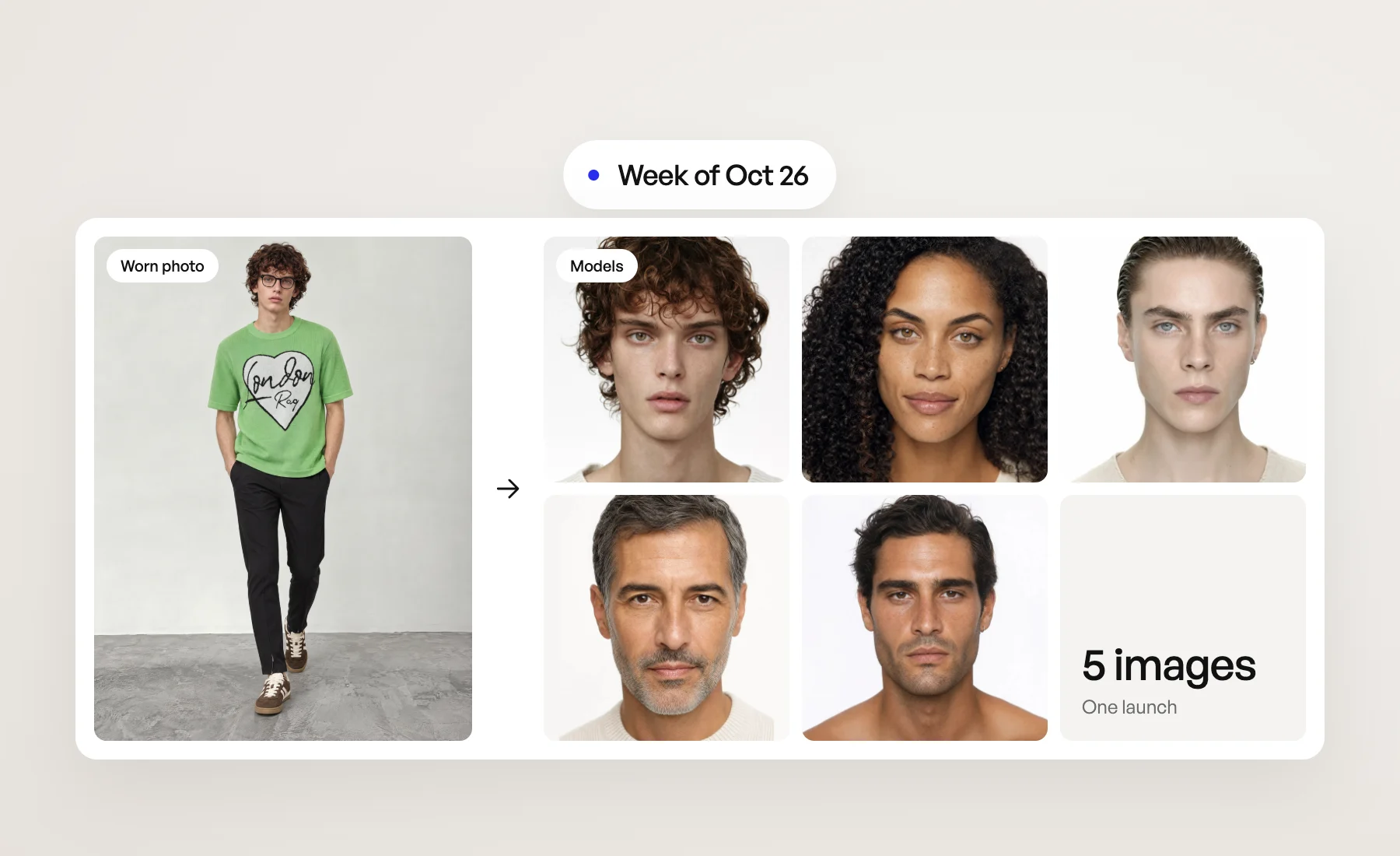
The Model step of Model swap now takes several models. Pick as many as you like, then click Swap model: each worn photo comes back once per model, so one photo and five models make five images in a single launch. Angle shots multiply the same way: 2 photos × 2 models × 3 angle shots launch 12 images, and the counter above the button shows the total before you start. More in the help article.
Set up a photo shoot from the chat
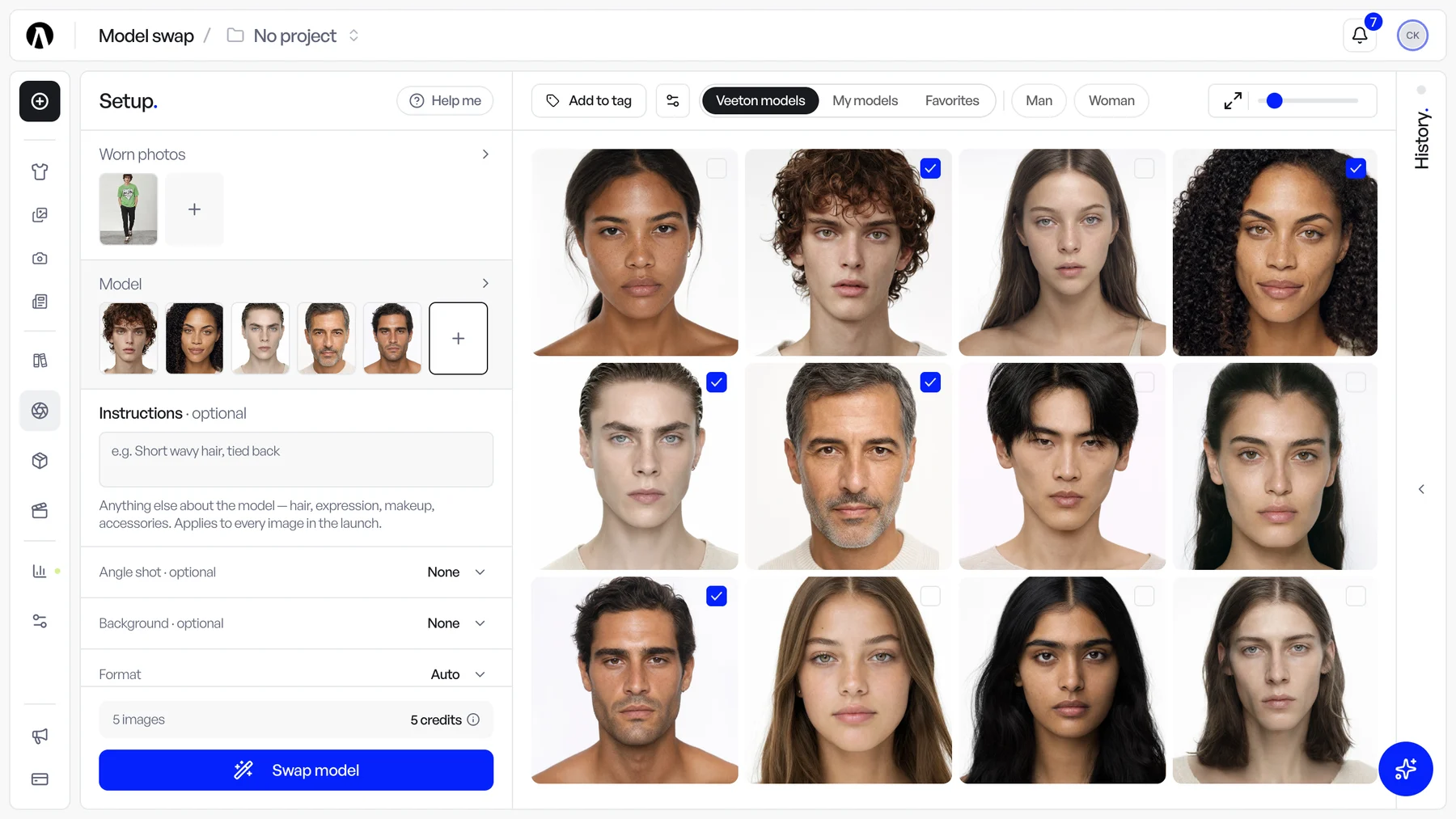
Ask Louis in the chat, "set up a photo shoot for the linen dress, a sunny terrace look" or "complete my photo shoot", and he does what the Photo shoots page does. He creates the project if you need one, picks the model, angle shot, background and styling, and writes them into the product configuration. His answer says why he chose each one and shows the configuration with the number of images it will make.
Nothing is generated until you say so: when you ask him to generate, he launches once you approve the credits. Everything he picks can be changed on the page, or by telling him what to change. More in the help article.
Generate a background from a description
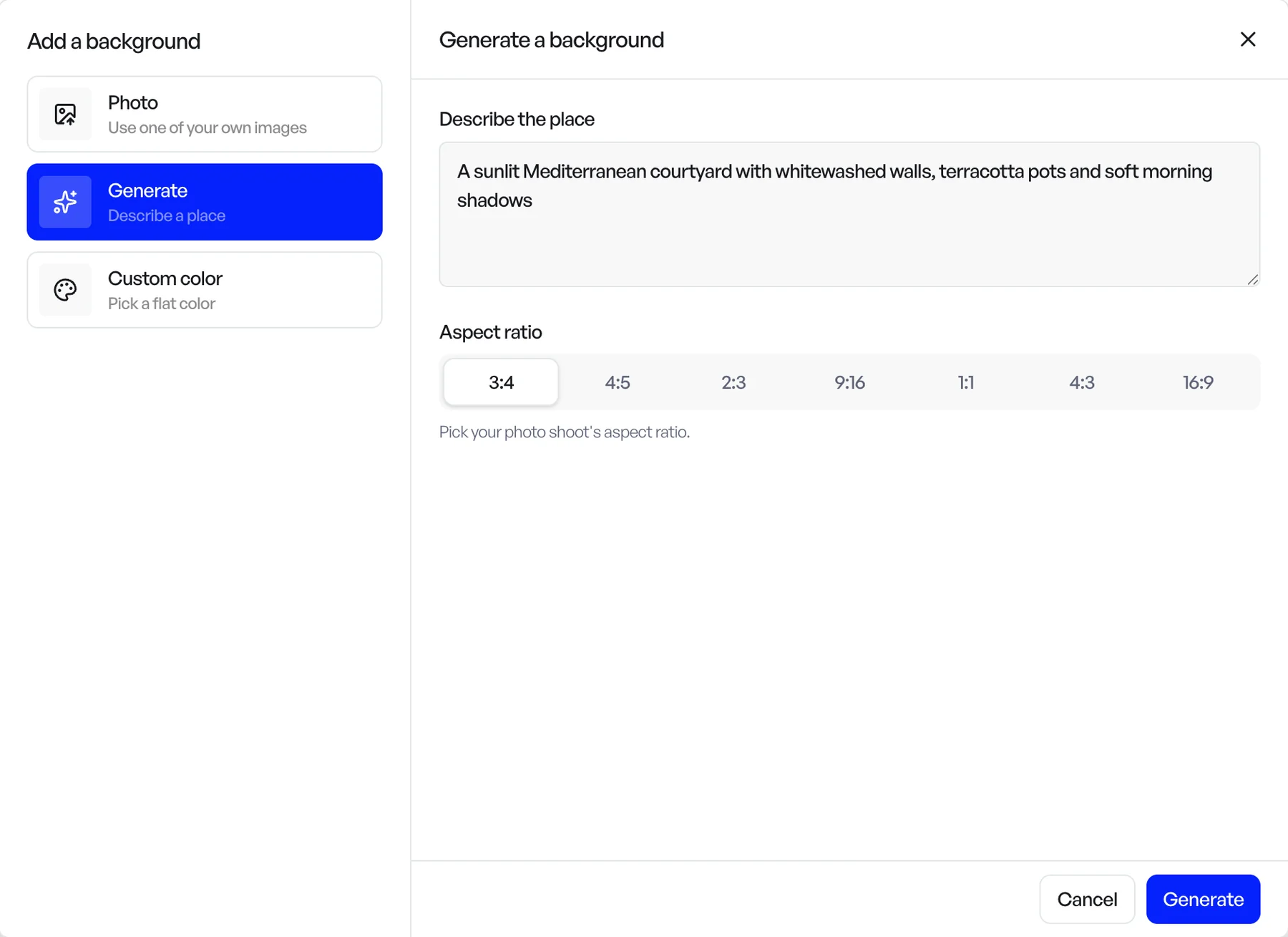
In Assets › Backgrounds, Add background now offers Generate next to Photo. Describe the place, such as "a sunlit Mediterranean courtyard with whitewashed walls", pick the aspect ratio of your photo shoot and click Generate. About a minute later the background is in My backgrounds, ready for your photo shoots, model swaps and editorials. You can also generate one from a project's Backgrounds tab without leaving it. More in the help article.
Compare side by side, result after result
The side-by-side comparison in the result viewer now stays open. Move to the next result and it opens again on the same input, the product or the model; close the viewer and it is still there the next time you open one. Close the comparison to go back to the result alone.
Editorials can be compared too: click a model, product or pose in the prompt to see it next to the result, or use the side-by-side button in the toolbar.
Grouped galleries, drawn as folders
When you group the results gallery by product, date, tag or review status, each group is now drawn as a folder holding its images. Collapse all folds them into cards with a thumbnail, the name and the number of images, so a long gallery fits on one screen. In the result viewer, the arrows now go from the last image of one group to the first of the next, without closing it.
Fixes and smaller changes
- Packshots stay packshots in Recoloring. A flat-lay or packshot uploaded as the image to recolor no longer comes back worn by a model.
- Short hair stays short. Four back and movement angle shots no longer give every model long hair.
- Only what the frame shows. Waist-up and close-up shots no longer try to fit in shoes or other styling items that are outside the frame.
- Your background photo keeps its shape. With the format on Auto, a photo shoot on a background photo you uploaded follows that photo's proportions instead of cropping it.
- Fewer blocked images. Lingerie, underwear and swimwear photo shoots are refused far less often, and an image refused by a content filter gets one more try before it fails.
- Art directions keep to their rules. The separate Instructions field is gone: Louis follows an art direction's rules when he picks a model, angle shot, background and styling. A reference board now proposes five rules at most, the ones that make the look.
- The version you pick shows at once. Choosing a version in a result's history updates the image right away, in grouped galleries too.
- 360° videos come without sound.
Open Veeton to try it.