
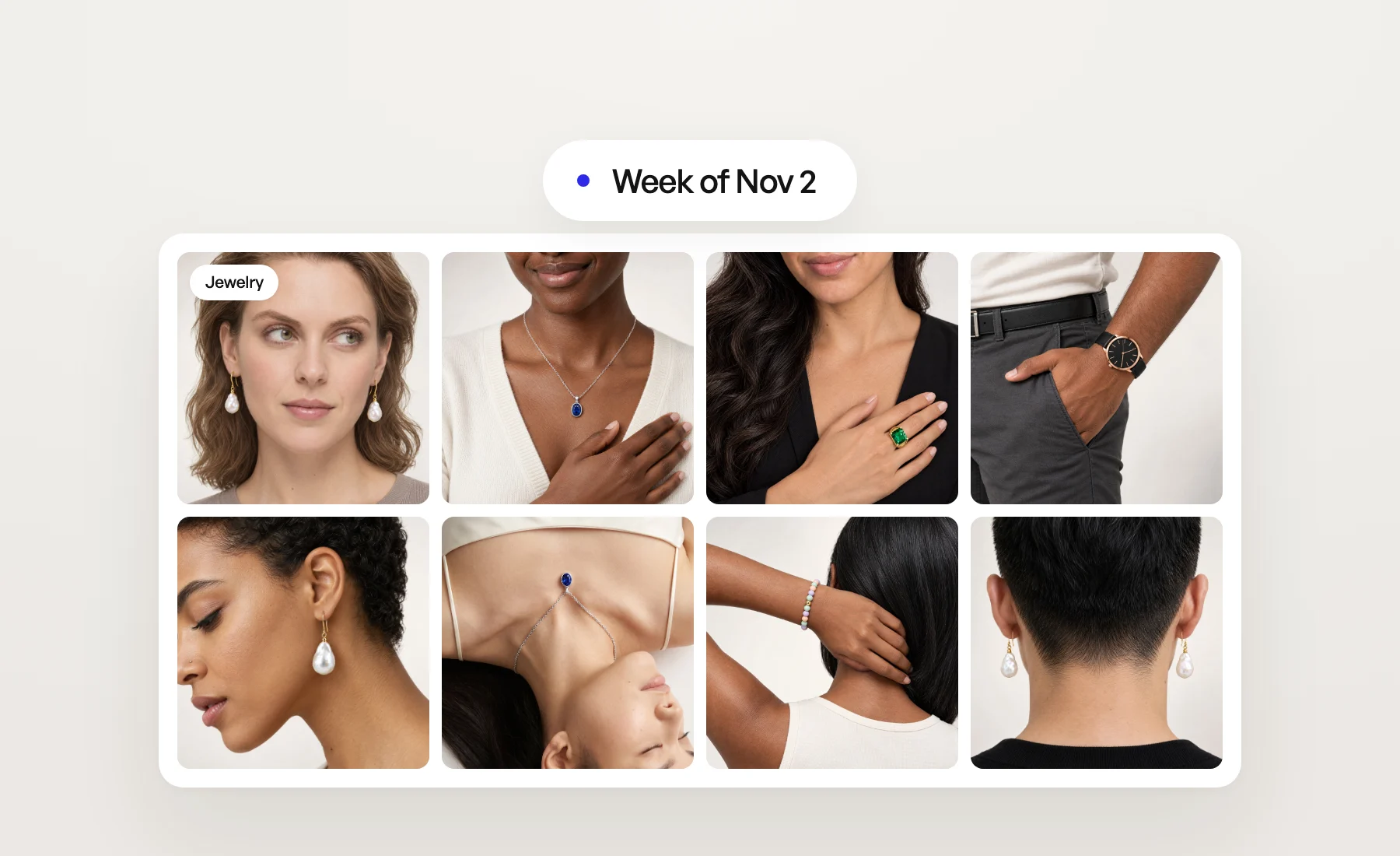
This week photo shoots take jewelry and watches, your projects can live in folders, and one recoloring can change several parts of a product at once.
Photo shoots for jewelry and watches
Photo shoots have a new Jewelry category for earrings, necklaces, pendants, bracelets, rings and watches. Pick Jewelry at "What are we styling today?", add your piece, then choose models, angle shots and backgrounds as usual. A product filed as jewelry opens on that category straight from your library.
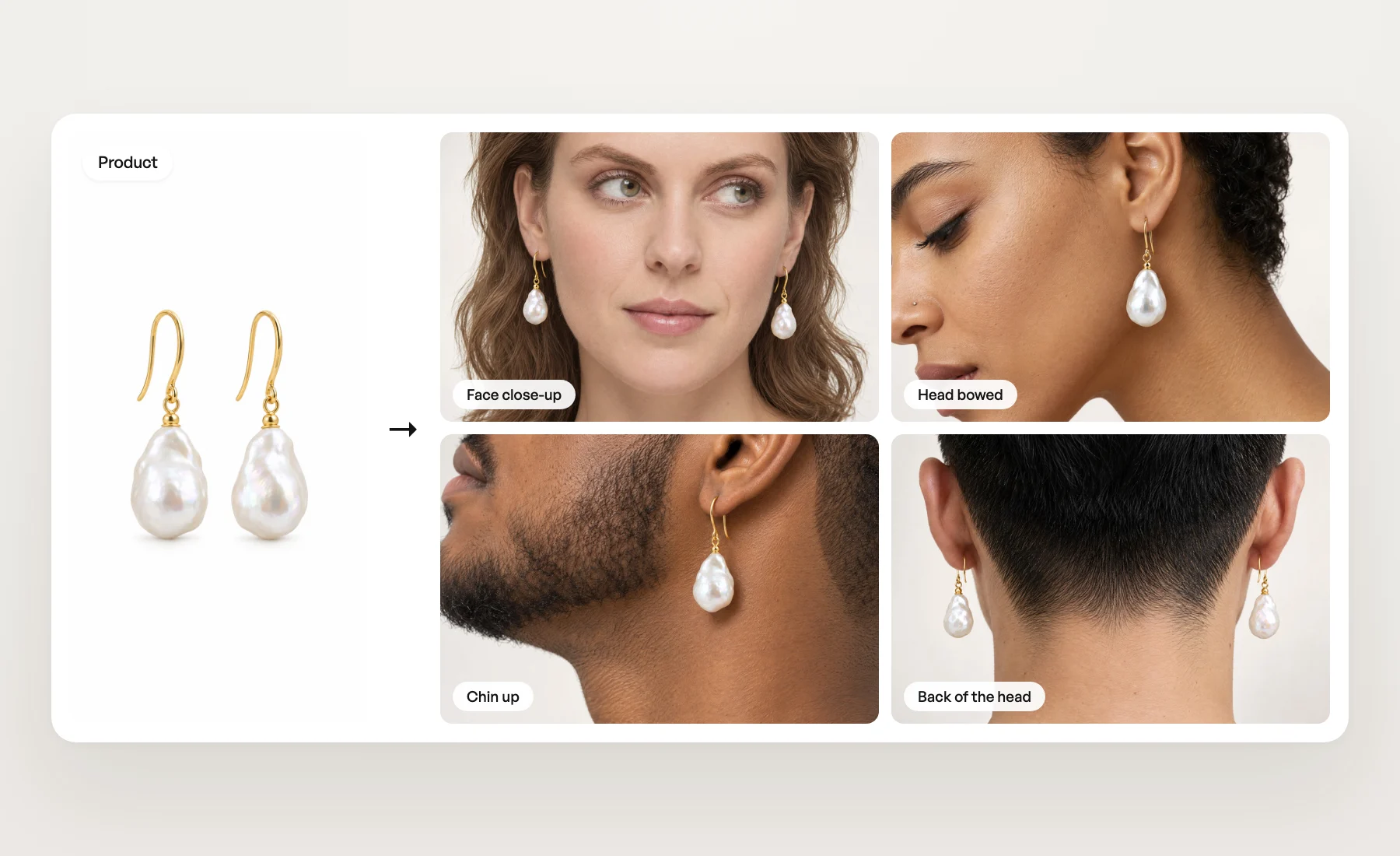
The Jewelry tab holds 18 angle shots, each framed on where the piece is worn: the ear, the neckline, the hand, the wrist. Face close-up shows both earrings, Back of the head shows them from behind, Neckline and Lying down frame a pendant, Back of the hand and Open hand a ring, Watch on the wrist a watch. The piece comes from your product photo, so its shape, stones and metal stay as you shot them. A jewelry image costs the same as any photo shoot image. The full tour is in Jewelry photo shoots, and the details in the help article.
Folders for your projects
Library › Projects now has folders, the way a computer does. Click New folder next to New project, then drag projects onto it, or use Move to…. Folders hold other folders, as deep as you need, and every move comes with Undo. Each folder card shows how many projects it holds and the covers of the latest ones.
A right click on a project, a folder or the page gives you their actions, and Shift-click selects everything between two cards. Download on a folder makes one zip of every project inside it, filed by folder, so the zip looks like your library. More in the help article.
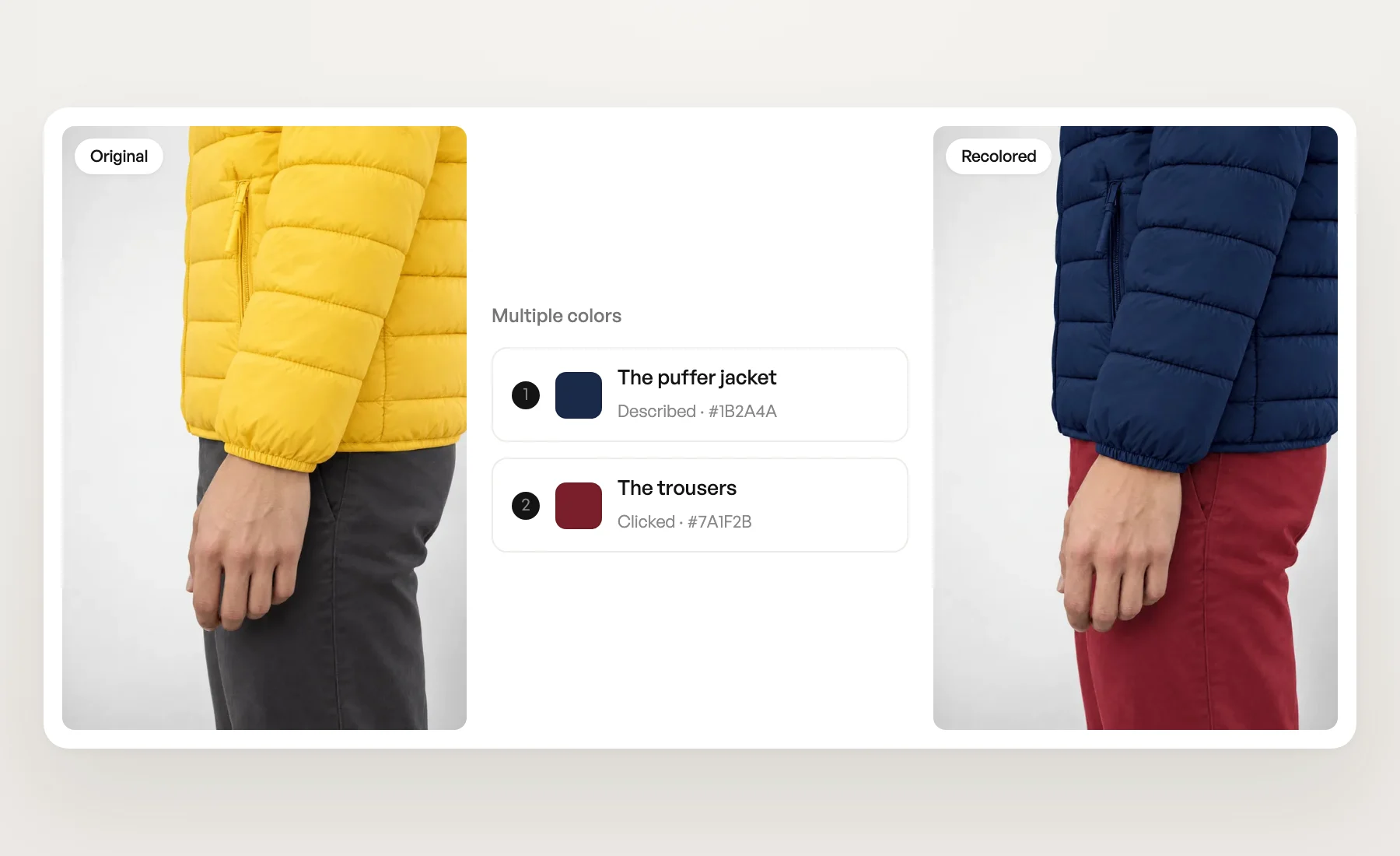
Several colors in one recoloring
Recoloring now has Multiple colors next to One color. Give up to four parts their own color: describe each part ("the collar", "the trousers") or, on a single photo shoot image, click it on the photo. Veeton recolors them all in one image and checks each color against the hex you picked.
Picking a product also lists every photo you uploaded for it, front and back first, each named by its view. Remove the ones you don't need: the counter and the cost count images, not products. More in the help article.
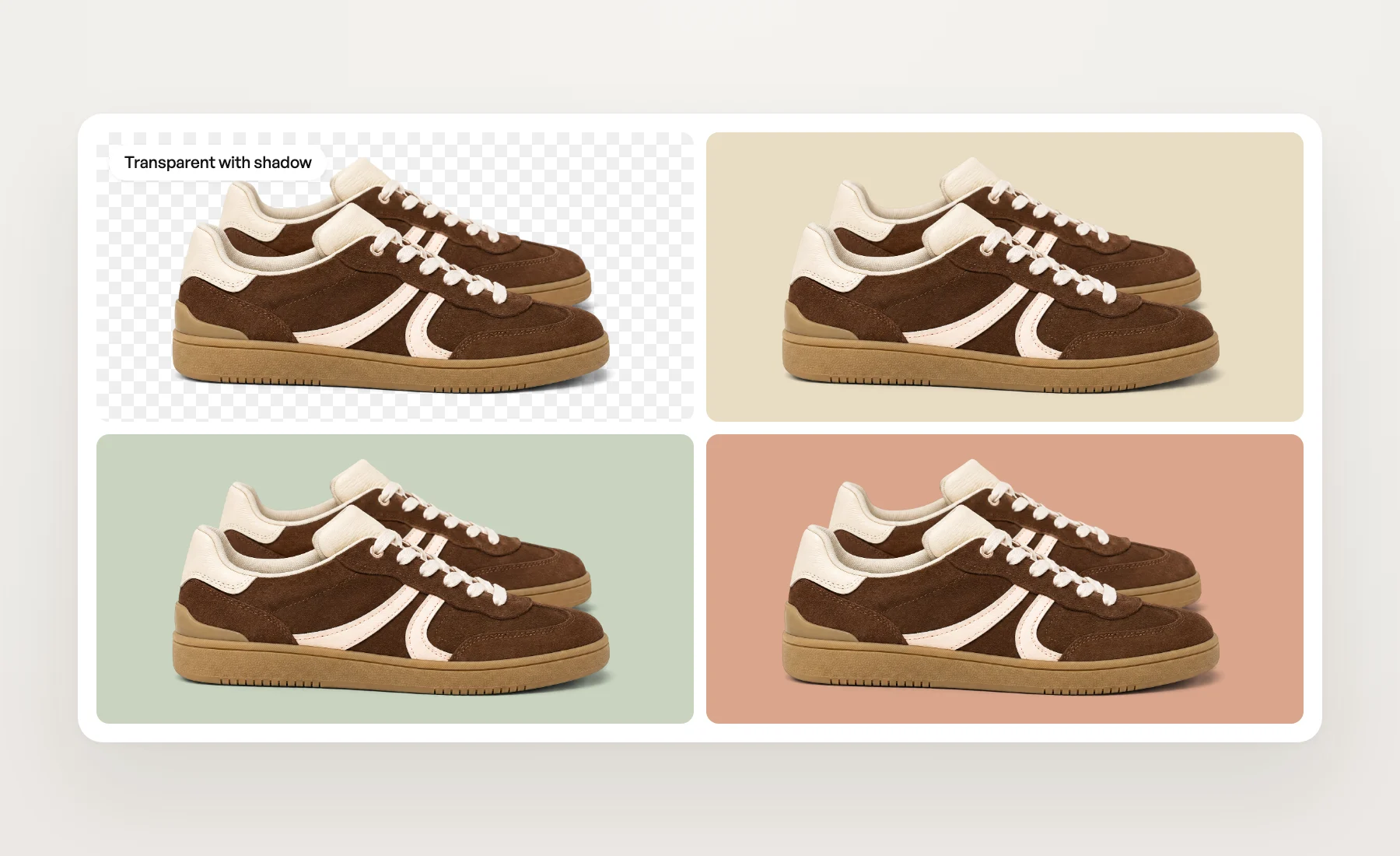
Transparent with shadow in the Product beautifier
The Transparent with shadow background now works in the Product beautifier, for clothing (flatlay and ghost mannequin), shoes, caps and hats, bags and glasses. You get your product cut out with the soft contact shadow under it, so placed on any color it stands on the page instead of floating. Transparent is still there when you want no shadow at all. More in the help article.
Fix up to four details at once
Fix a detail now takes up to four details in one fix, up from two. Click Add a detail to frame the next flaw. Two details can share the same correct-detail frame, such as one logo on the product photo for two warped prints. All details are fixed at the same time, so four take about as long as the slowest one.
If only some details could be fixed, you get those and the rest stay as they were. A fix costs the same whether it covers one detail or four, and a fix where nothing landed is refunded. More in the help article.
Fixes and smaller changes
- Shift-click selects a range. In the products, models, angle shots, backgrounds and projects libraries, and in the results gallery.
- Your own projects first. "Pick up where you left off" on the dashboard now lists the projects you last opened, launched or downloaded from, then your team's latest.
- 64 new models in the library. 20 adults aged 18 to 29 and 44 kids aged 10 to 15. Six older models left the library; your past results with them stay as they are.
- Recolored files say what they are. Downloads and exports name a recolor after its view and color, such as
TEE-001_back_recolored_1B2A4A.webp. - Louis recolors every photo of a product, as the Recoloring page does, and shows the photo count before you confirm.
- One name per angle shot. The app, Louis and the API docs now use the same name for each angle shot.
- The project gallery's size slider makes cards bigger when you drag it right, like every other gallery.
Open Veeton to try it.