
Two things you asked for often: fixing a small flaw on a packshot without starting over, and seeing a big library by collection instead of one long grid.
Fix a detail, now on your packshots
Fix a detail repairs one small flaw, such as a warped logo or a stray button, and leaves the rest of the image exactly as it was. It started on photo shoots. This week it arrived on Product beautifier results too: packshots, flatlays and ghost mannequins, for clothing, shoes and headwear.
How it works, and where it goes next: Fix a detail: correct logos and buttons on AI fashion photos.

Your libraries, one section per tag
Filtering hides what you didn't pick. Group by tag keeps everything and lays it out under headings instead: one section per tag, sub-tags right beneath their parent, and a No tag section at the end. Each heading counts its whole section, so a collapsed one still tells you whether it's worth opening. It works in the Results gallery, in your Products, Models and Projects libraries, and on My angle shots.
The full tour of tags, search and filters: Organize your product images: tags, AI search and smart filters.
Filters, rebuilt for long lists
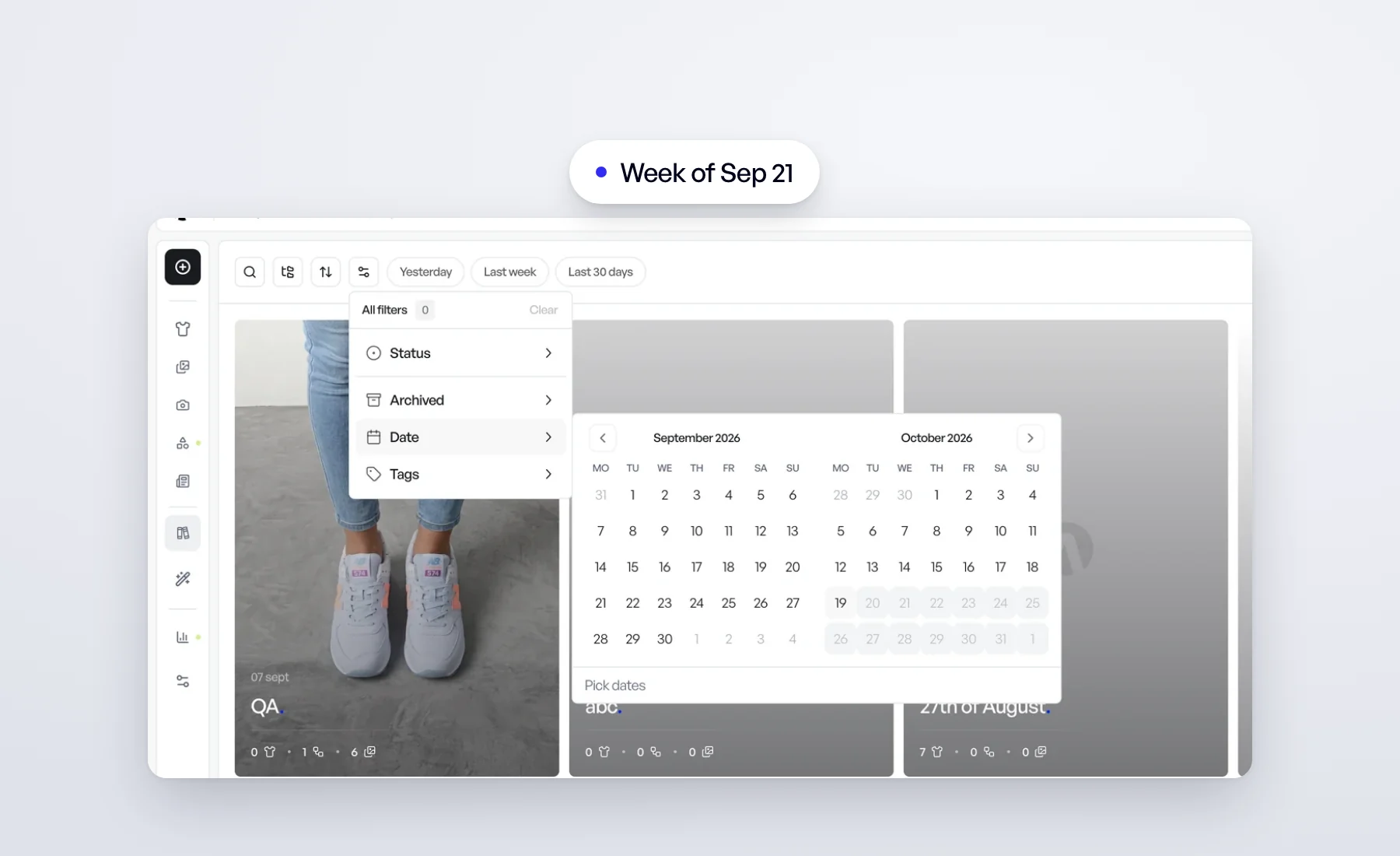
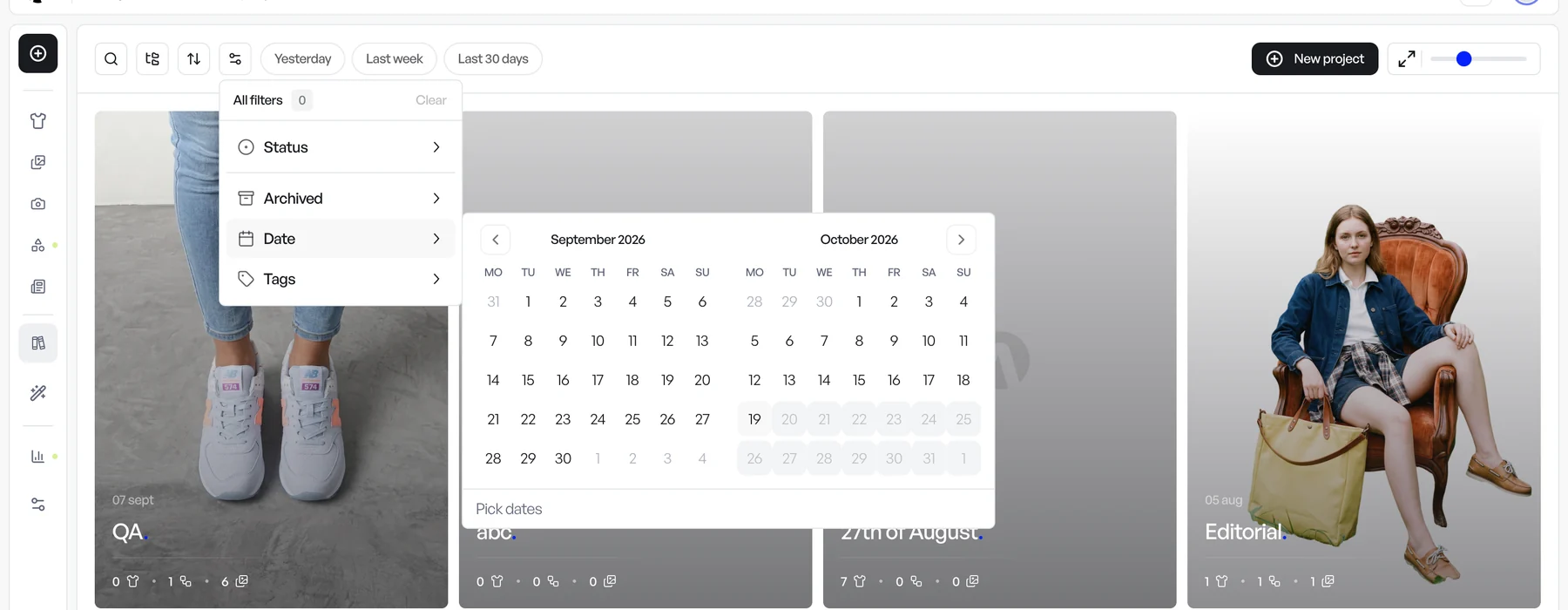
On a computer, Filters now opens a short menu with one row per filter. Hover a row to see its choices beside it, and tick as many as you like: the menu stays open, and each row shows how many are set.
Date filtering is now a calendar. Click a first and a last day to keep only what was created in between, or the same day twice for a single day. Clear under the calendar removes the dates and keeps your other filters.
Also this week
- Import one product per folder. If each of your products is a folder named after it, with photos called
1.jpg,2.jpgand so on, start your import template with the new Product folder token, for example{folder}/{orientation}. The folder's name becomes the product name and every photo inside becomes one of its views. Set it up in your import preferences (help article). - Model swap results keep their name. A swapped image now carries the name of the photo it came from, in the gallery, in single downloads and in zip exports. No more renaming by hand.
Open Veeton to try it.